- Should You Use the Built-In Booking Flow?
- How the Built-In Booking Flow Works
- Booking Tab Settings
- Booking Availability
- Service Address Step
- Deposit Collection
- Analytics Settings
- Lead Capture Settings
- Content Tab — Customizing Customer-Facing Text
- Testing the Full Booking Flow
- Quick Reference — Booking Flow Settings
- Related Articles
Site Nitro: Estimator includes a built-in booking flow that lets customers request an appointment directly on your website. This article covers every setting that affects the booking experience, from which days you’re available to how the deposit is collected.
Should You Use the Built-In Booking Flow? #
The built-in booking flow is designed for service businesses that do not have a CRM or scheduling tool, or whose current tool does not offer a good online booking experience.
Use the built-in booking flow if:
- You don’t use a CRM, scheduling app, or online booking tool
- Your current tool doesn’t have an embeddable booking form
- You want to keep customers on your website rather than sending them to a third-party scheduling page
Use your CRM or external booking tool instead if:
- You use HouseCall Pro, Jobber, ServiceTitan, Calendly, Acuity, or any tool with its own booking flow
- Your CRM handles deposit collection or payment processing
- Your scheduling tool syncs directly with your calendar
When using an external booking tool, set your CRM or scheduling link as the Primary Booking URL (Settings → Booking). The Book Online button will send customers directly to your existing system. In this case you can ignore the Reserve Your Spot form and deposit settings entirely — your external tool handles all of that.
How the Built-In Booking Flow Works #
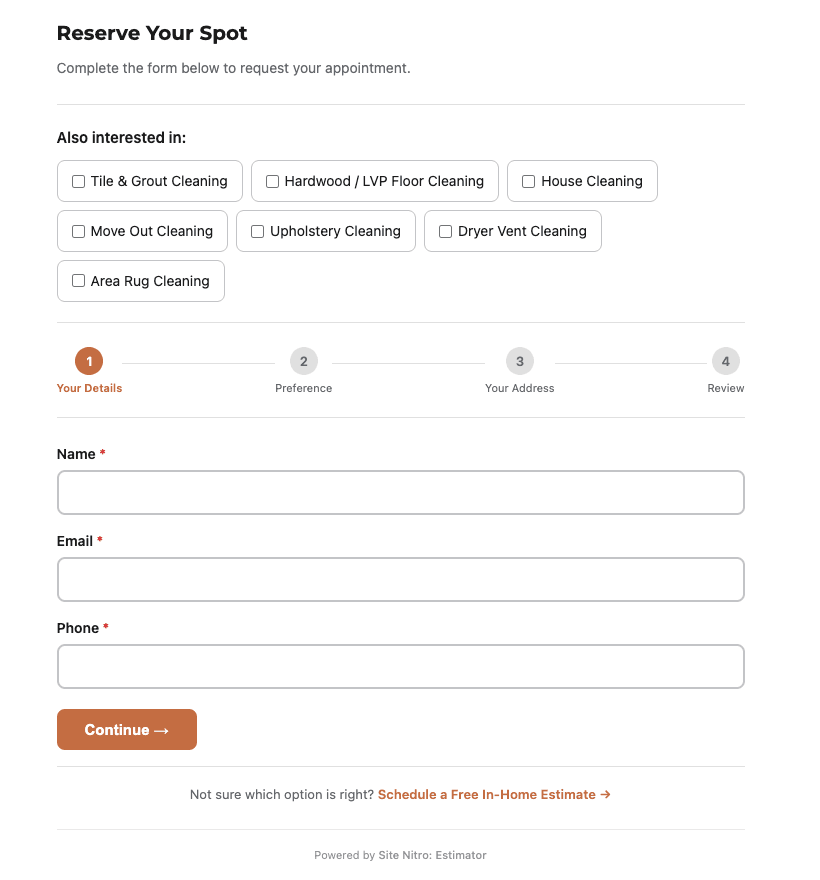
After a customer gets an estimate, a Reserve Your Spot section appears below the pricing cards. The customer completes up to four steps:
- Your Details — name, email, phone
- Preference — preferred date, time window, and available days
- Service Address — street, city, state, ZIP (optional — can be disabled)
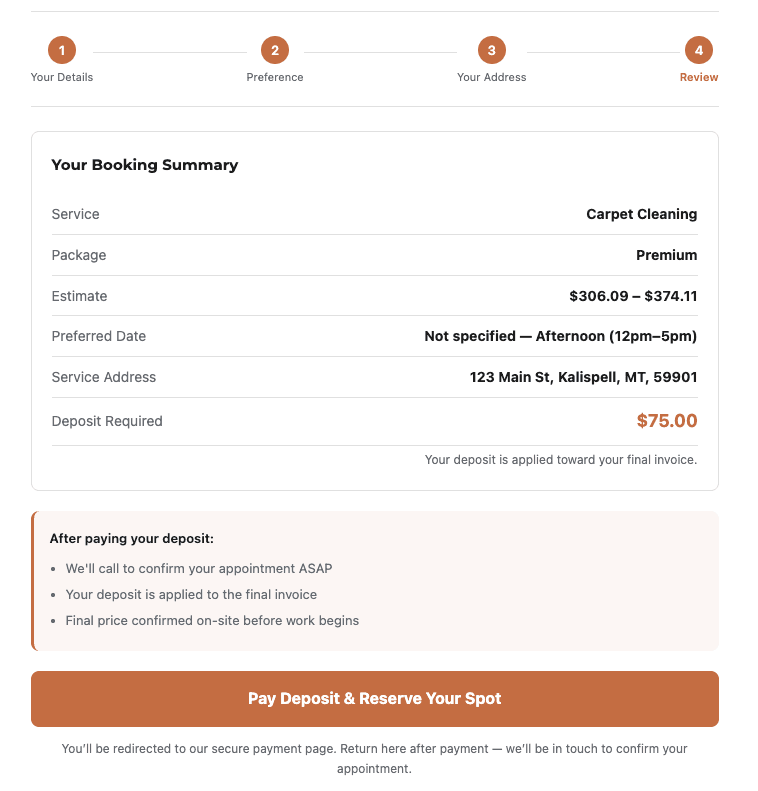
- Review — summary of their service, package, estimate, scheduling preference, and deposit amount, followed by the payment button
All booking flow settings are found under SN: Estimator → Settings. Most live in the Booking tab, with content customization in the Content tab and lead capture settings in the Lead Capture tab.
Booking Tab Settings #
Primary Booking URL #
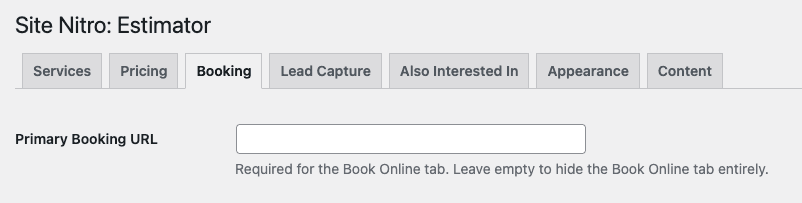
Go to Settings → Booking → Primary Booking URL.
This is the URL for your Book Online button — your CRM scheduler, Square, Calendly, or any external booking page. When this field is filled in, a Book Online tab appears alongside the Reserve Your Spot tab, giving customers two ways to proceed.
Leave this field empty if you only want the Reserve Your Spot in-page form and no external booking link. When empty, the tab bar is hidden and the booking form displays directly below the pricing cards with a clear section heading.
Booking Tab Label #
The label for the Reserve Your Spot tab — and the section heading when no Book Online tab is showing. Default is “Reserve Your Spot”.
Change this to match your brand voice. Common alternatives:
- Request an Appointment
- Book Your Service
- Schedule a Visit
- Get on the Calendar
This label also appears as the H3 heading above the booking form when the Book Online tab is not active, so choose something that reads naturally as both a tab label and a standalone heading.
Book Online Copy #
Text shown above the Book Now button in the Book Online tab. Use this to set expectations — tell the customer what happens after they click.
Example:
“Ready to schedule? Book directly online and we’ll confirm your appointment within 24 hours.”
Leave empty to hide this text entirely and show only the button.
Booking Availability #
This is one of the most important settings in the plugin. Configuring availability correctly prevents customers from requesting times you cannot serve — which reduces friction for your office and sets accurate expectations for the customer.
Available Days #
Check only the days your business operates. Unchecked days do not appear as options in Step 2 of the booking form.
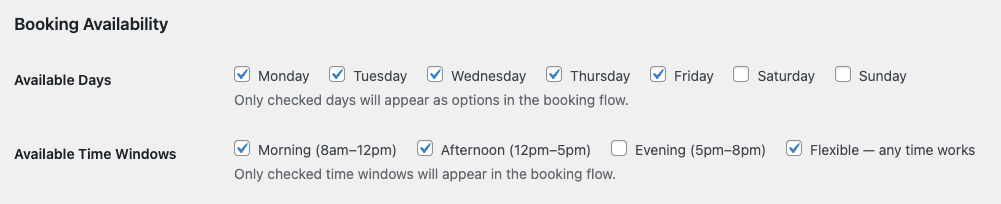
Example: A business that operates Monday through Friday should uncheck Saturday and Sunday. Customers will only see Mon, Tue, Wed, Thu, Fri as day options in the booking form.
Available Time Windows #
Check only the time windows you offer. Unchecked windows do not appear in the booking form.
| Option | Hours |
|---|---|
| Morning | 8am–12pm |
| Afternoon | 12pm–5pm |
| Evening | 5pm–8pm |
| Flexible — any time works | No specific window |
Tip: Most residential cleaning businesses should uncheck Evening. Keeping Flexible available gives customers who genuinely don’t have a preference an easy out rather than forcing them to pick a window they’re not sure about.
If only one time window is enabled, it displays as plain text rather than a selector — the customer sees “Available time: Morning (8am–12pm)” and the radio button UI is hidden automatically.
Service Address Step #
Go to Settings → Booking → Service Address.
Enable Address Step #
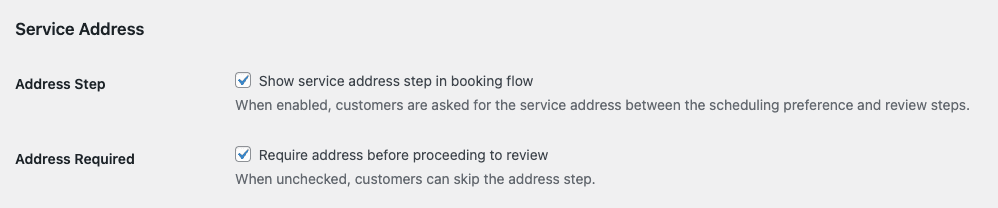
When checked, Step 3 (Service Address) appears in the booking flow. The customer is asked for:
- Street Address
- City
- State
- ZIP Code
The address appears in the Step 4 review summary and is included in the owner notification email and lead record.
When to enable: Any service performed at the customer’s location — carpet cleaning, window washing, lawn care, pressure washing. The business needs to know where to show up.
When to disable: Services where location doesn’t matter — drop-off rug cleaning, phone consultations, or any service performed at your facility rather than the customer’s home.
Require Address #
When checked, the customer must complete all four address fields before they can proceed to Step 4. When unchecked, a Skip this step link appears and the customer can bypass the address.
Recommendation: Enable and require the address for all on-site services. An incomplete address means your office has to follow up before scheduling — an extra step that slows down the booking confirmation.
Deposit Collection #
Deposit collection is completely optional. Many businesses use the booking flow without collecting a deposit at all — the form captures the lead and scheduling preference, and the office follows up to confirm and collect payment separately.
If you use a CRM or external booking tool that handles payments, collect your deposit there instead. The plugin’s deposit feature is intended for businesses using the built-in booking flow who want to secure commitment from the customer before dispatching a technician.
Each service has its own deposit settings configured in the service edit form (Settings → Services → Edit), not the global Booking tab. This lets you charge different deposit amounts per service or disable deposits entirely on a per-service basis.
How Deposit Collection Works #
- The customer completes Steps 1–3 of the booking form
- Step 4 (Review) shows a summary of their booking including the deposit amount
- The customer clicks the payment button, which links to your payment processor
- Your payment processor collects the fixed deposit amount
Important: Site Nitro: Estimator displays the deposit amount for transparency but does not process payments directly. You create a fixed-price payment link in your payment processor (Square, Stripe, PayPal, etc.) and paste that URL into the plugin. The payment button links to that URL exactly as configured — no amount parameters are passed.
Setting Up a Deposit for a Service #
- Go to Settings → Services and click Edit next to the service.
- Scroll to the Deposit & Payment section.
- Set the Deposit Amount ($) — the fixed dollar amount displayed on the Step 4 review screen. Set to 0 to disable deposit collection for this service.
- Paste your payment link into Payment Page URL — this can be a Square payment link, Stripe payment link, PayPal.me link, or any fixed-price checkout URL.
- Optionally customize the Payment Button Label. Default is “Pay Deposit & Reserve Your Spot.”
- Click Save Service.
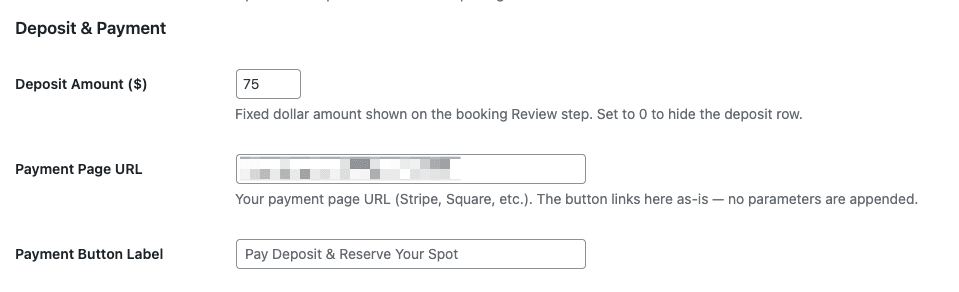
Creating a payment link: In Square, go to Online Checkout → Create a Link and set a fixed price. In Stripe, go to Payment Links → Create a payment link and set a fixed price. Copy the URL and paste it into the Payment Page URL field.
Deposit Amount vs. Payment URL — They Must Match #
The Deposit Amount field is display-only. It tells the customer what they will be charged, but the actual charge amount is controlled by your payment processor link. If you change your deposit amount, update both the plugin field and your payment link.
| Setting | What it does |
|---|---|
| Deposit Amount ($) | Shows on Step 4 review screen — display only |
| Payment Page URL | Where the button links — controls actual charge |
| Payment Button Label | Text on the payment button |
Thank You Page URL #
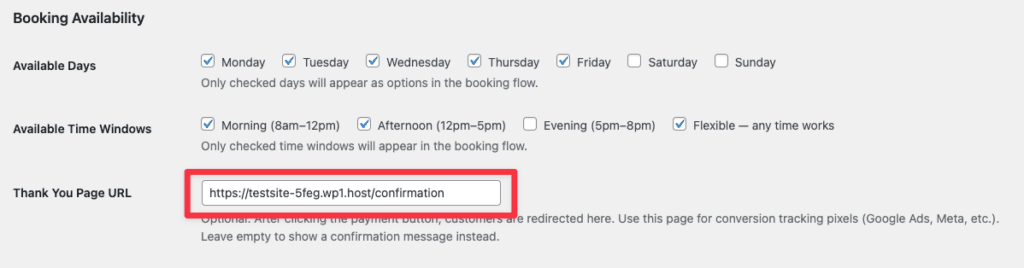
Go to Settings → Booking → Thank You Page URL.
After the customer clicks the payment button, you can redirect them to a thank you page on your site. This is useful for:
- Google Ads conversion tracking — place your conversion tag on the thank you page
- Meta Pixel purchase events — fire your pixel on the thank you page
- Confirmation message — show the customer a branded confirmation page
When a thank you URL is configured, the payment page opens in a new tab and the current page redirects to your thank you URL. When left empty, the booking form shows an inline confirmation message instead.
Analytics Settings #
Go to Settings → Booking → Analytics.
Enable Tracking #
When checked, Site Nitro: Estimator tracks anonymous customer events — calculator loads, estimates generated, booking steps completed, leads submitted — and stores them in your database. This data powers the Estimator Dashboard and the WordPress dashboard widget.
No personal information is collected. All tracking is anonymous and session-based.
Disable this if your site requires no third-party or plugin tracking (e.g. for GDPR compliance configurations where all tracking must be explicitly opt-in).
Data Retention #
How many days of event data to keep. Events older than this are automatically deleted daily. Minimum 30 days, default 90 days.
Increase this if you want longer trend data for reporting. Decrease it to keep your database lean. The setting does not affect lead records — only anonymous analytics events.
Lead Capture Settings #
Go to Settings → Lead Capture.
Enable Lead Capture #
When checked, customer submissions from the Reserve Your Spot form are saved to your WordPress database and appear in SN: Estimator → Leads. Uncheck to disable the form and lead storage entirely.
Notification Email #
The email address that receives a notification when a new lead is submitted. Leave blank to use your WordPress admin email.
Email deliverability tip: Install WP Mail SMTP and connect it to a transactional email service (SendGrid, Mailgun, Postmark) for reliable delivery. Without SMTP configuration, notification emails may fail or land in spam on shared hosting environments.
Notification Subject #
The subject line for owner notification emails. Supports a [Service Name] placeholder that is replaced with the actual service name. The selected package is appended automatically — for example:
New Estimate Request — Carpet Cleaning (Premium)
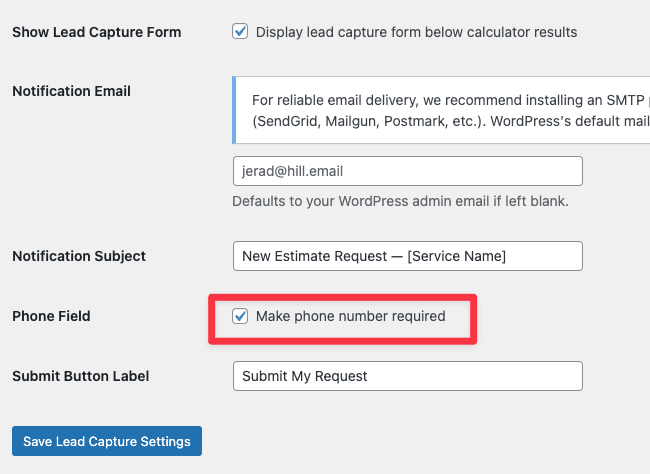
Phone Required #
When checked, the phone field in Step 1 is required before the customer can proceed. When unchecked, phone is optional.
Recommendation: Require phone for service businesses. Most appointment confirmations happen by phone, and a lead without a phone number significantly reduces your ability to follow up quickly.
Content Tab — Customizing Customer-Facing Text #
Go to Settings → Content to customize the text customers see throughout the booking flow.
Booking Flow Step Labels #
The labels shown in the step indicator at the top of the booking form. Keep them short — 1 to 2 words.
| Step | Default | Example Alternative |
|---|---|---|
| Step 1 | Your Details | Contact Info |
| Step 2 | Preference | Schedule |
| Step 3 | Your Address | Service Address |
| Step 4 | Review | Confirm |
Address Field Placeholders #
The placeholder text inside each address field before the customer types. Update these to reflect your service area so the example feels relevant to local customers.
| Field | Default | Example |
|---|---|---|
| Street Address | 123 Main St. | 456 Oak Ave. |
| City | City | Modesto |
| State | State | CA |
| ZIP Code | ZIP Code | 95354 |
Next Steps List #
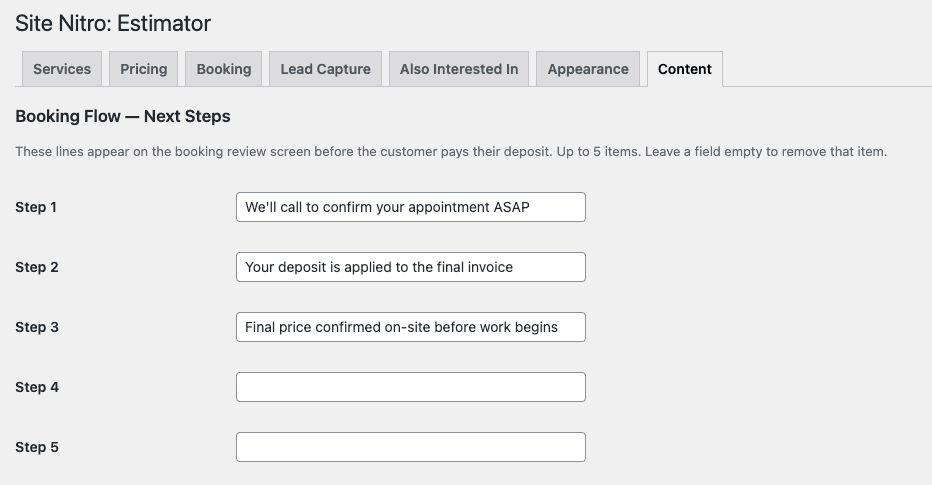
Up to five lines displayed on the Step 4 review screen under the heading “After paying your deposit.” Use this to set clear expectations about what happens after the customer submits.
Default:
- We’ll call to confirm your appointment ASAP
- Your deposit is applied to the final invoice
- Final price confirmed on-site before work begins
Customize these to match your process. If you confirm by text instead of phone, say so. If you send a confirmation email, mention it. The more specific and accurate these are, the fewer “what happens next?” calls your office receives.
Success Message #
Shown to the customer after they click the payment button, when no Thank You Page URL is configured. This is the last thing the customer sees in the booking flow.
Default: “Thanks — we’ll be in touch soon to confirm your estimate.”
Personalize this to match your brand. Include a timeframe if you have a consistent response time — for example: “Thanks! We’ll call within 2 business hours to confirm your appointment.”
Owner Notification — Deposit Reminder Note #
A note shown in the owner notification email directly below the deposit amount. Used to remind your office to verify the deposit was received before scheduling the appointment.
Default: “⚠ Please confirm deposit was received before scheduling.”
Testing the Full Booking Flow #
After configuring your settings, test the complete customer experience before going live:
- Open your calculator page and run an estimate.
- Confirm the Reserve Your Spot section heading appears below the pricing cards.
- Complete Step 1 — enter test name, email, and phone.
- Complete Step 2 — confirm only your configured days and time windows appear.
- Complete Step 3 — enter a test address. Confirm validation fires if you try to skip required fields.
- Review Step 4 — confirm service name, selected package, estimate range, preferred date, time, address, and deposit amount all appear correctly.
- Click the payment button — confirm it links to your payment processor URL.
- Check SN: Estimator → Leads — confirm the test lead appears with all details captured correctly.
- Check your notification email — confirm it arrived with the correct service, package, deposit amount, and deposit reminder note.
If the notification email didn’t arrive: Go to WP Mail SMTP → Tools → Email Test and send a test email to confirm your SMTP connection is working.
Quick Reference — Booking Flow Settings #
| Setting | Location | What it controls |
|---|---|---|
| Primary Booking URL | Booking tab | Book Online button destination; leave empty to hide Book Online tab |
| Booking Tab Label | Booking tab | Tab label and section heading |
| Book Online Copy | Booking tab | Text above Book Now button |
| Available Days | Booking tab | Which days appear in Step 2 |
| Available Time Windows | Booking tab | Which time windows appear in Step 2 |
| Address Step Enabled | Booking tab | Whether Step 3 (address) appears |
| Address Required | Booking tab | Whether address fields must be filled |
| Thank You Page URL | Booking tab | Post-payment redirect for conversion tracking |
| Analytics Enabled | Booking tab | Whether events are tracked and stored |
| Data Retention | Booking tab | How long event data is kept (days) |
| Enable Lead Capture | Lead Capture tab | Whether form submissions are saved |
| Notification Email | Lead Capture tab | Where owner notifications are sent |
| Phone Required | Lead Capture tab | Whether phone is required in Step 1 |
| Step Labels | Content tab | Text in the step indicator |
| Address Placeholders | Content tab | Placeholder text in address fields |
| Next Steps List | Content tab | Expectations shown on Step 4 review |
| Success Message | Content tab | Message shown after payment click |
| Deposit Amount | Service edit form | Fixed deposit shown on Step 4 |
| Payment Page URL | Service edit form | Payment processor link |
| Payment Button Label | Service edit form | Text on deposit button |
Related Articles #
- Installation & First Setup
- Setting Up an Area-Based Service (Carpet Cleaning)
- Managing Leads
- Customizing Colors & Content
Need help? Visit sitenitro.com/plugins/estimator or contact support.


