- Step 1 — Confirm Analytics is Enabled
- Step 2 — Check the Date Range on the Dashboard
- Step 3 — Confirm the Database Table Exists
- Step 4 — Check for JavaScript Errors
- Step 5 — Confirm sneData.analyticsEnabled is True
- Step 6 — Check the Network Tab for Tracking Requests
- Step 7 — Check for Security Plugin Interference
- Step 8 — Check Data Retention Settings
- Step 9 — Check Session Deduplication
- Still Not Recording?
- Related Articles
If your Estimator Dashboard is showing zeros across all metrics, or if the numbers are not increasing when you use the calculator, this article walks through every cause and fix.
Step 1 — Confirm Analytics is Enabled #
The most common cause of missing analytics data is tracking being turned off.
Go to SN: Estimator → Settings → Booking tab → Analytics section and confirm the Enable Tracking checkbox is checked. If it is unchecked, no events are being recorded.

Step 2 — Check the Date Range on the Dashboard #
The dashboard defaults to the last 7 days. If you are looking for data from before that window, it will not appear in the default view.
Free users: The dashboard always shows the last 7 days. If events were recorded more than 7 days ago they are still in the database but not shown in the current view.
Pro users: Use the date pickers at the top of the dashboard to extend the date range and click Apply. If data appears with a wider date range, tracking is working correctly — the default window was just too narrow.
Step 3 — Confirm the Database Table Exists #
Site Nitro: Estimator creates a custom database table ({prefix}sne_events) when the plugin is activated. If this table is missing, events cannot be saved.
This can happen if:
- The plugin was installed on a restricted hosting environment that prevented table creation
- The database user does not have
CREATE TABLEpermission - The plugin was updated and the table schema was not migrated correctly
To check:
- Go to SN: Estimator → Dashboard.
- Use the calculator on your site — run an estimate and go through a few booking steps.
- Check the dashboard again. If the stat cards still show 0, the table may be missing.
To fix: Deactivate and reactivate the plugin. Reactivation triggers the database setup routine which creates the table if it is missing. Go to Plugins, deactivate Site Nitro: Estimator, then activate it again.
If the problem persists after reactivation, contact your hosting provider and confirm your database user has CREATE TABLE and INSERT permissions.
Step 4 — Check for JavaScript Errors #
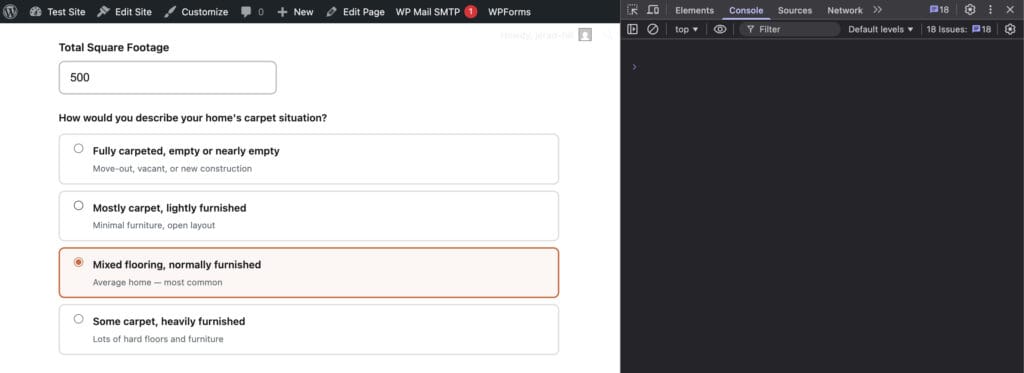
Analytics events are tracked using JavaScript. If a JavaScript error is occurring on your calculator page, events may not be firing.
- Open your calculator page in Chrome or Firefox.
- Right-click and select Inspect → Console.
- Reload the page and run an estimate.
- Look for any red error messages — particularly any that reference
sne_track_eventorsneData.
If you see JavaScript errors from other plugins or your theme, try disabling them one at a time to identify a conflict.
Step 5 — Confirm sneData.analyticsEnabled is True #
The calculator only sends tracking events when sneData.analyticsEnabled is set to true. If this value is false, no events are sent regardless of what the settings say.
To check:
- Open your calculator page.
- Open the browser console (right-click → Inspect → Console).
- Type
sneData.analyticsEnabledand press Enter. - The response should be
true.
If it returns false, analytics is disabled at the data level. Go back to Step 1 and confirm the Enable Tracking checkbox is saved correctly. Try unchecking it, saving, then re-checking it and saving again.
If sneData is undefined entirely, the plugin scripts are not loading on this page. See Calculator Not Showing on My Page for script loading diagnostics.
Step 6 — Check the Network Tab for Tracking Requests #
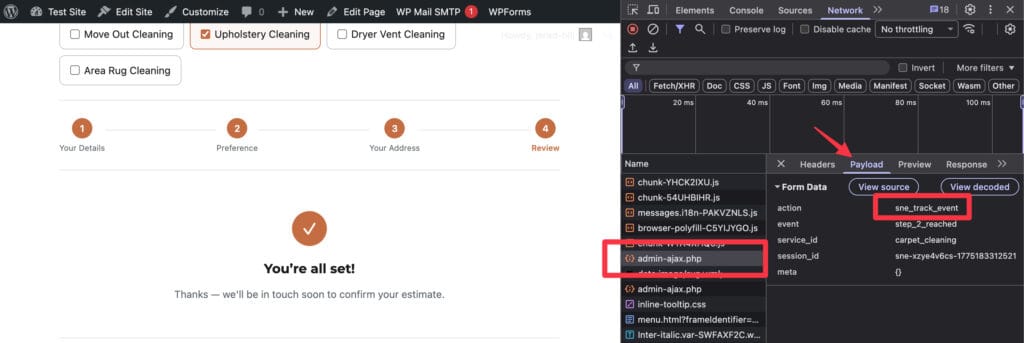
When an event fires, the calculator sends a POST request to admin-ajax.php with action=sne_track_event. You can verify these requests are being sent using the browser’s Network tab.
- Open your calculator page with developer tools open (F12).
- Click the Network tab.
- Run an estimate — click Get Estimate.
- In the Network tab, filter by “ajax” or search for “sne_track_event”.
- You should see a POST request to
admin-ajax.phpfire when the estimate is generated.
What the responses mean:
| Response | Meaning |
|---|---|
{"success":true} | Event recorded successfully |
{"success":true} with no data change | Analytics is disabled — event silently ignored |
0 | AJAX action not registered — plugin loading issue |
403 | Security plugin blocking the request |
| No request appears | JavaScript error prevented the event from firing |
Step 7 — Check for Security Plugin Interference #
Security plugins with firewall features sometimes block AJAX requests from the front end of your site. Since analytics tracking uses the same AJAX mechanism as the booking form, the same security plugin that blocks form submissions can also block event tracking.
To test: temporarily deactivate your security plugin, use the calculator, and check the dashboard. If events start appearing, the security plugin is blocking tracking requests.
Fix: Add an exception in your security plugin for the sne_track_event AJAX action. Refer to your security plugin’s documentation for how to whitelist specific AJAX actions.
Common security plugins that may cause this: Wordfence, iThemes Security / Solid Security, All In One WP Security, Sucuri.
Step 8 — Check Data Retention Settings #
If you previously had data and it has disappeared, the auto-purge cron job may have deleted events that exceeded your retention period.
Go to SN: Estimator → Settings → Booking tab → Analytics → Data Retention. Check the number of days configured. The default is 90 days — if this was changed to a lower value, older events may have been purged.
Events older than the retention period are deleted automatically once per day. This is expected behavior — if you need longer data history, increase the retention period before the data is purged.
Note: Increasing the retention period prevents future purging but does not recover already-deleted events.
Step 9 — Check Session Deduplication #
If you are testing analytics yourself by reloading the calculator page repeatedly, you may not see the count increase as expected. The Calculator Loaded and Estimate Generated events are deduplicated per browser session — they only fire once per service per session.
To force a new session and trigger these events again:
- Close the browser tab and open a new one
- Or open an incognito/private browsing window
- Or clear your browser’s session storage for the site
All other events (Package Selected, Booking Started, steps, Payment Clicked, Lead Submitted) are not deduplicated and fire every time.
Still Not Recording? #
If you have completed all nine steps and analytics are still not recording, contact support at sitenitro.com/support with:
- The value of
sneData.analyticsEnabledfrom your browser console - The Network tab response for
sne_track_eventrequests - Whether the
sne_eventstable exists in your database - Your WordPress version and PHP version
- Your hosting provider name
- A list of active plugins
Related Articles #
- Understanding the Analytics Dashboard
- Calculator Not Showing on My Page
- Booking Form Not Submitting
Need help? Visit sitenitro.com/plugins/estimator or contact support.


