- Understanding How the Form Works
- Step 1 — Check for Validation Errors
- Step 2 — Check the Browser Console for JavaScript Errors
- Step 3 — Confirm the AJAX URL is Available
- Step 4 — Check for Security Plugin Interference
- Step 5 — Check for Caching Plugin Interference
- Step 6 — Test with Default Theme and No Other Plugins
- Step 7 — Check the Network Tab for AJAX Response
- Step 8 — Check Your PHP Error Log
- Still Not Submitting?
- Related Articles
If customers are filling out the Reserve Your Spot booking form but nothing happens when they click Continue or the payment button, this article walks through every cause and fix.
Understanding How the Form Works #
Before troubleshooting, it helps to understand how the booking form submits data. The form uses AJAX — it sends data to WordPress in the background without reloading the page. If AJAX is blocked or failing, the form will appear to do nothing when submitted.
The lead is saved to your database at the moment the customer clicks the payment button — not when they complete the payment. If a lead appears in SN: Estimator → Leads but the form seemed unresponsive, the submission actually succeeded.
Step 1 — Check for Validation Errors #
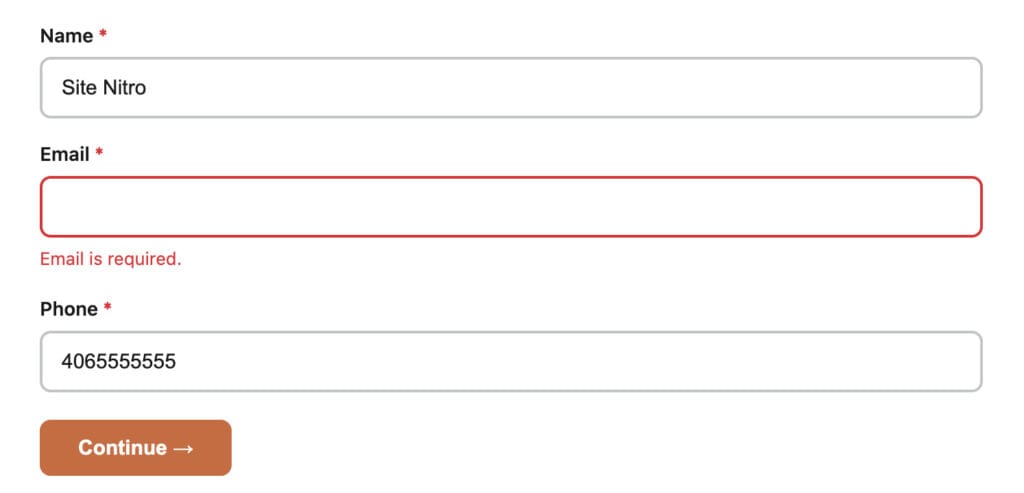
The most common reason the form appears not to submit is a failed validation check — a required field was left empty or filled incorrectly.
When a required field fails validation, a red error message appears below that field and the form stays on the current step. The error messages are small and can be easy to miss, especially on mobile.
Common validation failures:
- Step 1 — Name, email, or phone left empty (phone is required when configured as such in Lead Capture settings)
- Step 1 — Email address entered in an invalid format
- Step 3 — Address fields left empty when the address step is set to required
Go through the form carefully and check for any red text below the input fields.
Step 2 — Check the Browser Console for JavaScript Errors #
If validation is passing but the Continue button still does nothing, a JavaScript error is likely preventing the form from advancing.
- Open the calculator page in Chrome or Firefox.
- Right-click and select Inspect.
- Click the Console tab.
- Fill out the form and click Continue or the payment button.
- Look for any red error messages in the console at the moment you click.
Report any errors you see — especially errors that mention sne, sneData, or admin-ajax.php. These point directly to the issue.
Step 3 — Confirm the AJAX URL is Available #
The booking form submits data to admin-ajax.php — a standard WordPress endpoint. If this endpoint is blocked or returning an error, form submissions will silently fail.
To check:
- Open the browser console on your calculator page.
- Type
sneData.ajaxUrland press Enter. - You should see a URL ending in
/wp-admin/admin-ajax.php.
If sneData is undefined or ajaxUrl is missing, the plugin scripts are not loading correctly. See Calculator Not Showing on My Page for script loading diagnostics.
If the URL is present, check whether the endpoint is reachable. In your browser address bar, navigate to the admin-ajax.php URL directly. You should see the response 0 — this is normal and means the endpoint is working. Any other response (404, 403, 500) indicates a server-level block.
Step 4 — Check for Security Plugin Interference #
Security plugins — particularly those with firewall features — sometimes block AJAX requests from the front end of your site, treating them as suspicious activity.
Common security plugins that can cause this:
- Wordfence
- iThemes Security / Solid Security
- All In One WP Security
- Sucuri
To test: temporarily deactivate your security plugin, submit the booking form, and check whether a lead appears in SN: Estimator → Leads. If it does, the security plugin is blocking the AJAX request.
Fix: Add an exception in your security plugin for the sne_submit_lead AJAX action, or whitelist requests to admin-ajax.php from your own domain. Refer to your security plugin’s documentation for how to add AJAX exceptions.
Step 5 — Check for Caching Plugin Interference #
Some caching plugins cache AJAX responses, which can cause form submissions to appear to succeed but actually return stale cached data. Others block AJAX requests entirely on cached pages.
Fix: In your caching plugin settings, confirm that AJAX requests to admin-ajax.php are excluded from caching. Most caching plugins do this by default, but aggressive configurations may override it.
If you are using Cloudflare, confirm that admin-ajax.php is not being cached at the Cloudflare level. Go to your Cloudflare dashboard and add a Page Rule or Cache Rule to bypass cache for URLs containing admin-ajax.php.
Step 6 — Test with Default Theme and No Other Plugins #
If Steps 1–5 have not resolved the issue, isolate whether the problem is a plugin conflict or theme conflict.
Test with plugins disabled:
- Deactivate all plugins except Site Nitro: Estimator.
- Submit the booking form.
- Check SN: Estimator → Leads for the submission.
- If it succeeds, reactivate plugins one at a time until the form stops submitting — that plugin is the conflict.
Test with default theme:
- Go to Appearance → Themes and activate Twenty Twenty-Four.
- Submit the booking form.
- If it succeeds with the default theme, your active theme has a JavaScript conflict.
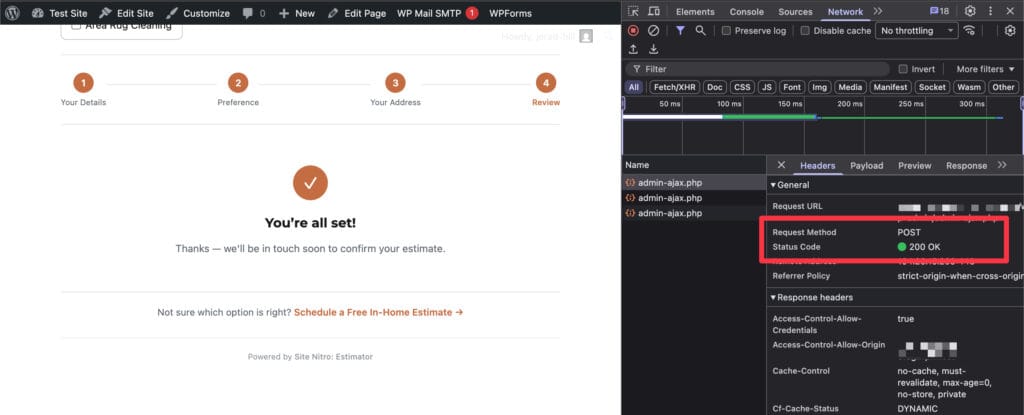
Step 7 — Check the Network Tab for AJAX Response #
The Network tab in your browser’s developer tools shows the actual server response when the form submits, which is the most precise diagnostic available.
- Open the calculator page with developer tools open (F12 or right-click → Inspect).
- Click the Network tab.
- Fill out the booking form completely and click the payment button.
- Look for a POST request to
admin-ajax.phpin the network log. - Click that request and check the Response tab.
What the responses mean:
| Response | Meaning |
|---|---|
{"success":true} | Submission succeeded — lead is saved |
{"success":false,"data":{"message":"..."}} | Submission reached PHP but failed — check the message |
0 | The AJAX action was not found — plugin may not be loading correctly |
403 or 401 | Security plugin or server blocking the request |
500 | PHP error on the server — check your error log |
| No request appears | JavaScript error prevented the AJAX call from firing |
Step 8 — Check Your PHP Error Log #
If the Network tab shows a 500 response or a {"success":false} with an unhelpful message, a PHP error may be occurring during the lead save process.
Ask your hosting provider how to access your PHP error log, or enable WordPress debug logging temporarily:
Add these lines to your wp-config.php file:
define( 'WP_DEBUG', true );
define( 'WP_DEBUG_LOG', true );
define( 'WP_DEBUG_DISPLAY', false );
Submit the booking form, then check /wp-content/debug.log for any errors. Share the relevant error lines with support.
Remember to remove or disable these lines after troubleshooting — leaving
WP_DEBUGenabled on a live site can expose sensitive information.
Still Not Submitting? #
If you have completed all eight steps and the form still does not submit, contact support at sitenitro.com/support with:
- The response shown in the Network tab for the
admin-ajax.phprequest - Any errors from the browser Console tab
- Your WordPress version and PHP version
- Your hosting provider name
- A list of active plugins and your active theme
Related Articles #
- Calculator Not Showing on My Page
- Notification Emails Not Arriving
- Analytics Not Recording Events
Need help? Visit sitenitro.com/plugins/estimator or contact support.


