- Step 1 — Confirm the Plugin is Active
- Step 2 — Confirm the Service is Active
- Step 3 — Confirm the Shortcode is Correct
- Step 4 — Check How the Shortcode Was Added
- Step 5 — Check That the Service Has Required Fields
- Step 6 — Clear Your Cache
- Step 7 — Plugin Conflicts and Caching
- Step 8 — Theme Compatibility
- Still Not Working?
- Related Articles
If you’ve added the estimator shortcode to a page but nothing appears — or only a blank space appears — this article walks through the most common causes and how to fix each one.
Tags: estimator, troubleshooting
Step 1 — Confirm the Plugin is Active #
Go to WordPress Admin → Plugins. Find Site Nitro: Estimator in the list and confirm it shows Active in blue. If it shows an Activate link instead, click it.
If the plugin is active but showing a PHP error notice at the top of your screen, see Plugin Conflicts below.

Step 2 — Confirm the Service is Active #
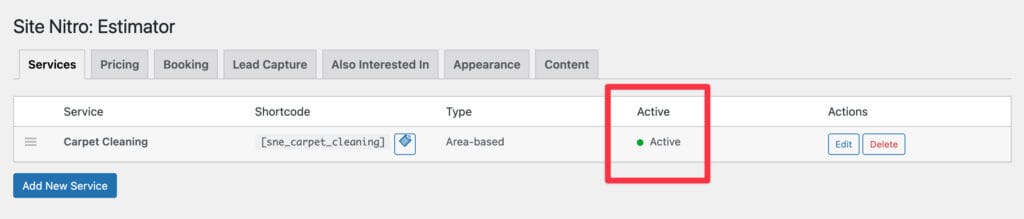
The most common cause of a blank calculator is the service being set to inactive.
- Go to SN: Estimator → Settings → Services tab.
- Find the service whose shortcode you embedded.
- Check the Active column — it should show a green dot.
- If it shows inactive, click Edit and check the Active checkbox, then click Save Service.
Step 3 — Confirm the Shortcode is Correct #
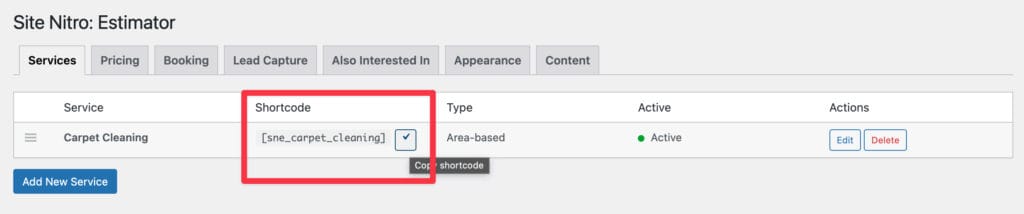
Go to SN: Estimator → Settings → Services tab. Each service row shows its shortcode. Copy it using the copy button and compare it exactly to what you have on your page.
Common shortcode mistakes:
| Wrong | Correct |
|---|---|
[sne_carpet cleaning] | [sne_carpet_cleaning] |
[SNE_Carpet_Cleaning] | [sne_carpet_cleaning] |
[sne_carpet_cleaning /] | [sne_carpet_cleaning] |
sne_carpet_cleaning (no brackets) | [sne_carpet_cleaning] |
Shortcodes are case-sensitive and use underscores, not spaces. If your page builder converted the shortcode to a link or formatted it as code, re-paste it as plain text.
Step 4 — Check How the Shortcode Was Added #
Different page builders handle shortcodes differently. If the calculator is not rendering, the shortcode may not be executing correctly.
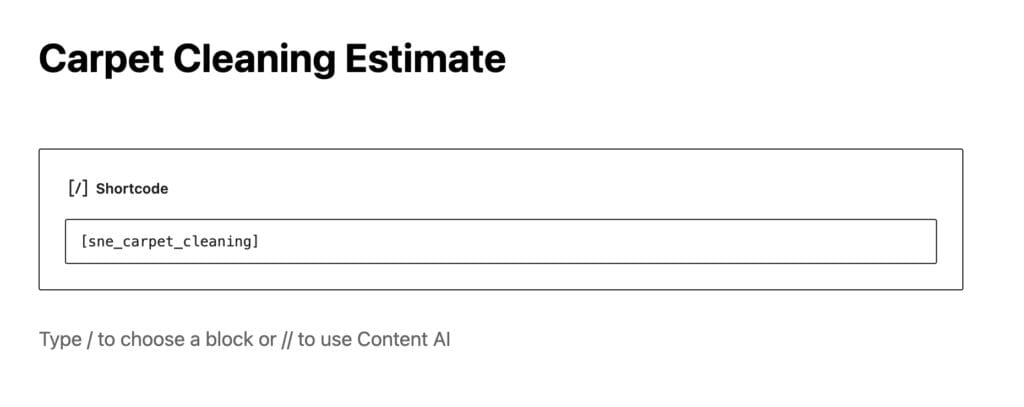
Gutenberg (block editor): The shortcode must be inside a dedicated Shortcode block — not inside a Paragraph block, Heading block, or any other block type. If you typed the shortcode into a paragraph, delete it and add a Shortcode block instead.
- In the block editor, click the + button to add a block.
- Search for “Shortcode” and select the Shortcode block.
- Paste
[sne_carpet_cleaning]into the shortcode field. - Update the page.
Elementor: Use a Shortcode widget from the Elementor panel. Do not paste the shortcode into a Text widget or HTML widget — use the dedicated Shortcode widget.
Divi: Use a Code module and paste the shortcode inside it.
Classic Editor: Paste the shortcode directly into the content area in Text mode (not Visual mode). In Visual mode, some editors wrap the shortcode in <p> tags which can interfere with rendering.
Step 5 — Check That the Service Has Required Fields #
A service with missing required configuration will not render. Open the service edit form and verify:
- Calculator Type is set (Area-based, Per-item, or Capture)
- For area-based services: at least one tier rate is greater than $0
- For per-item services: at least one item is added with rates greater than $0
- The Active checkbox is checked
If any tier rates are $0.00, the calculator will render but may show $0.00 estimates. This is not a display bug — it means the rates need to be configured.
Step 6 — Clear Your Cache #
If you recently activated the plugin, updated a service, or changed settings, your caching plugin may be serving a stale version of the page that doesn’t include the calculator.
Clear cache in common plugins:
- WP Rocket: Admin bar → WP Rocket → Clear Cache
- W3 Total Cache: Performance → Purge All Caches
- WP Super Cache: Settings → WP Super Cache → Delete Cache
- LiteSpeed Cache: Admin bar → LiteSpeed → Purge All
- Cloudflare: Your Cloudflare dashboard → Caching → Purge Everything
After clearing cache, hard refresh your browser with Ctrl+Shift+R (Windows) or Cmd+Shift+R (Mac) to bypass your browser’s own cache.
Step 7 — Plugin Conflicts and Caching #
If the calculator still does not appear after completing Steps 1–6, a plugin conflict may be preventing the calculator scripts from loading.
Check the browser console for JavaScript errors:
- Open your page in Chrome or Firefox.
- Right-click anywhere on the page and select Inspect.
- Click the Console tab.
- Reload the page.
- Look for any red error messages. A JavaScript error from another plugin can prevent the calculator from initializing.
Check if scripts are loading:
In the browser inspector, click the Network tab, reload the page, and filter by “sne”. You should see sne-calculator.js and sne-calculator.css in the list. If they are missing, the plugin is not enqueuing its assets on this page.
Common causes of missing assets:
- A caching plugin is excluding JavaScript from certain pages
- A performance optimization plugin is deferring or blocking scripts
- The page is not a singular post/page (the calculator only loads assets on singular pages by default — it does not load on archive pages, category pages, or shop pages)
Test with all other plugins disabled:
- Go to Plugins and deactivate all plugins except Site Nitro: Estimator.
- Reload your calculator page.
- If the calculator appears, reactivate plugins one at a time until it breaks — that plugin is the conflict.
- Contact the conflicting plugin’s support with the details.
Step 8 — Theme Compatibility #
In rare cases, a theme’s JavaScript or CSS can conflict with the calculator. Test with a default WordPress theme (Twenty Twenty-Four) temporarily:
- Go to Appearance → Themes and activate Twenty Twenty-Four.
- Reload your calculator page.
- If the calculator appears, the conflict is in your theme. Contact your theme developer with the details.
Still Not Working? #
If you have completed all eight steps and the calculator still does not appear, contact support at sitenitro.com/support with the following information:
- Your WordPress version
- Your PHP version
- The URL of the page where the shortcode is embedded
- The exact shortcode you are using
- A screenshot of your browser console (Step 7)
- A list of active plugins
Related Articles #
- Installation & First Setup
- Plugin Conflicts — Page Builders and Caching Plugins
- Prices Showing as $0.00
Need help? Visit sitenitro.com/pricing/estimator or contact support.


