- Step 1 — Check Your Tier Rates
- Step 2 — Check Your Item Rates (Per-Item Services)
- Step 3 — Confirm the Correct Shortcode is on the Page
- Step 4 — Clear Your Cache
- Step 5 — Check for JavaScript Errors
- Step 6 — Confirm sneData is Loading Correctly
- Step 7 — Check the Coverage Selector Multiplier
- Still Showing $0.00?
- Related Articles
If your calculator is rendering but all prices show as $0.00, the issue is almost always missing rate configuration in the service edit form. This article walks through every cause and fix.
Step 1 — Check Your Tier Rates #
The most common cause of $0.00 prices is unconfigured tier rates.
- Go to SN: Estimator → Settings → Services tab.
- Click Edit next to the service showing $0.00.
- Scroll to the tier configuration section.
- Check each tier’s rate field — confirm all three are greater than $0.00.
- If any rates are blank or 0, enter your rates and click Save Service.
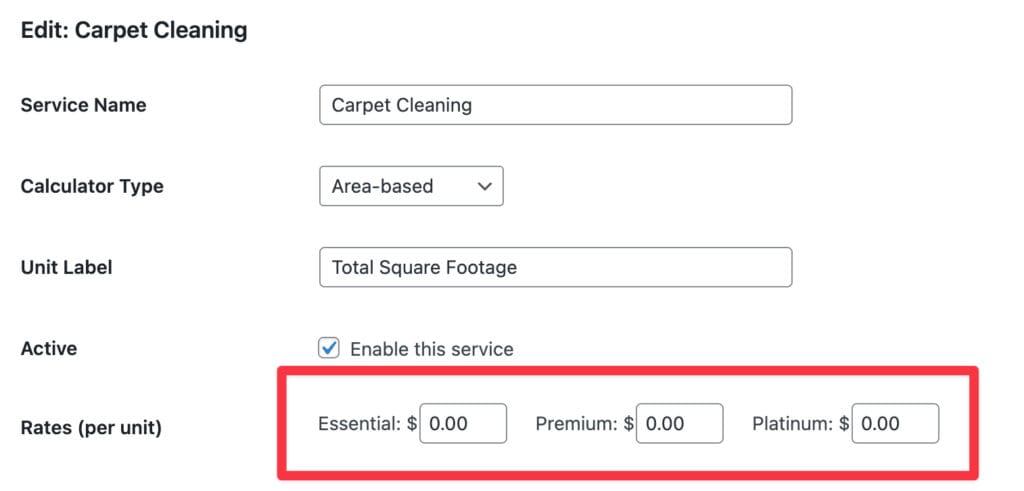
Why this happens: The plugin ships with pre-configured services but the rates are set to example values. If the Upholstery Cleaning or another secondary service was activated without configuring rates, it will show $0.00 across all tiers.
Step 2 — Check Your Item Rates (Per-Item Services) #
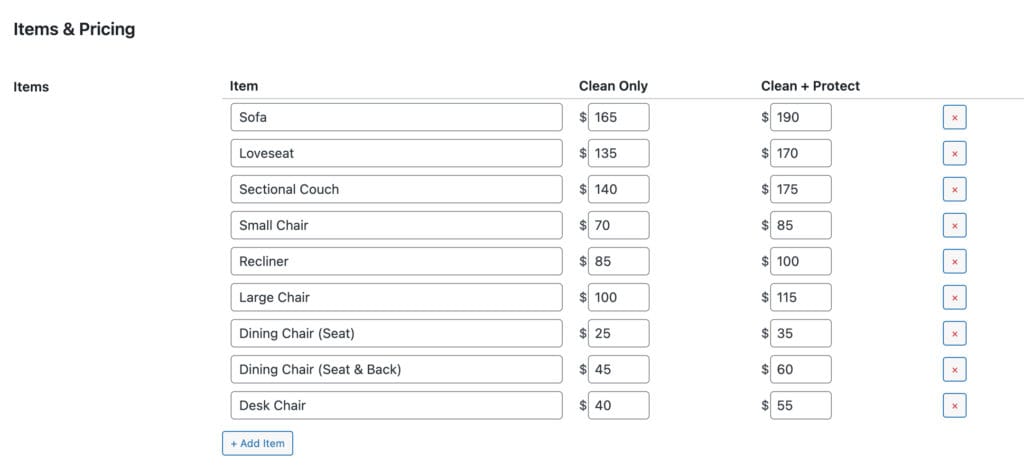
If the service is a per-item calculator (Upholstery Cleaning or similar), the rates are configured per item rather than per tier.
- Click Edit next to the per-item service.
- Scroll to the Items & Pricing section.
- Check both rate columns (Option 1 and Option 2) for every item — confirm all values are greater than $0.
- If any rates are 0, enter the correct values and click Save Service.
Step 3 — Confirm the Correct Shortcode is on the Page #
If you have multiple services, confirm the shortcode on the page matches the service you configured. Each service has a unique shortcode shown in the Services tab.
Example: If you configured rates on Carpet Cleaning but the page contains [sne_upholstery_cleaning], the calculator will render the unconfigured Upholstery Cleaning service and show $0.00.
Go to SN: Estimator → Settings → Services tab, copy the correct shortcode, and confirm it matches what is on your page exactly.
Step 4 — Clear Your Cache #
If you recently updated rates but the calculator still shows $0.00, your caching plugin may be serving a stale version of the page.
Clear your cache in your caching plugin and hard refresh the browser with Ctrl+Shift+R (Windows) or Cmd+Shift+R (Mac).
See Calculator Not Showing on My Page for cache clearing instructions for common caching plugins.
Step 5 — Check for JavaScript Errors #
All price calculations happen in the browser using JavaScript. If a JavaScript error is preventing the calculator script from running correctly, prices may default to $0.00.
- Open your calculator page in Chrome or Firefox.
- Right-click anywhere and select Inspect.
- Click the Console tab.
- Reload the page and run an estimate.
- Look for any red error messages.
A JavaScript error from another plugin or theme can interfere with the calculator’s pricing logic. If you see errors unrelated to Site Nitro: Estimator, try disabling other plugins one at a time to identify the conflict.
Step 6 — Confirm sneData is Loading Correctly #
The calculator reads all service configuration — including rates — from a JavaScript object called sneData that is injected into the page by the plugin. If this object is missing or malformed, prices will show as $0.00.
To check:
- Open your calculator page.
- Right-click and select Inspect → Console.
- Type
sneDataand press Enter. - You should see a JavaScript object with a
servicesproperty containing your service configuration. - Inside the services object, find your service and check that the
tiersarray contains non-zeroratevalues.
If sneData is undefined, the plugin’s scripts are not loading on this page. See Calculator Not Showing on My Page for script loading diagnostics.
If sneData is present but rates show as 0, the issue is in the saved service data — go back to Step 1 and re-save your rates.
Step 7 — Check the Coverage Selector Multiplier #
For area-based calculators, the effective cleaning area is calculated by multiplying the customer’s square footage by a coverage multiplier (between 45% and 95% depending on the option selected). If the multiplier is somehow set to 0, all estimates will show $0.00 regardless of the tier rates.
This is rare but worth checking if Steps 1–6 did not resolve the issue.
- Open the calculator page and open the browser console.
- Type
sneData.servicesand press Enter. - Find your service and look for the
coverage_optionsarray. - Confirm each option has a
factorvalue greater than 0 (e.g. 0.95, 0.80, 0.65, 0.45).
If any factor is 0, the coverage selector data is corrupted. Delete the service, recreate it, and re-enter your configuration.
Still Showing $0.00? #
If you have completed all seven steps and prices are still showing as $0.00, contact support at sitenitro.com/support with:
- A screenshot of your service edit form showing the rate fields
- The output of
sneDatafrom your browser console - Your WordPress version and PHP version
- A list of active plugins
Related Articles #
- Calculator Not Showing on My Page
- Setting Up an Area-Based Service
- Setting Up a Per-Item Service
Need help? Visit sitenitro.com/plugins/estimator or contact support.


