This guide walks you through installing Site Nitro: Estimator, configuring the minimum required settings, and embedding your first pricing calculator on a page. By the end of this article your calculator will be live and accepting estimate requests from customers.
| ⏱ Time Required | ⚙️ Difficulty | 📋 Prerequisites |
|---|---|---|
| 10–15 minutes | Beginner | WordPress 6.0+, PHP 8.0+ |
1. Requirements #
Before installing Site Nitro: Estimator, confirm your WordPress environment meets the following requirements:
- WordPress: 6.0 or higher
- PHP: 8.0 or higher
- SMTP plugin (recommended): WP Mail SMTP or similar, connected to a transactional email service (SendGrid, Mailgun, Postmark). Without this, owner notification emails may not deliver reliably on shared hosting.
- SSL certificate: Required if using the deposit/payment link feature. Your site must be served over HTTPS.
Note: Site Nitro: Estimator is compatible with all standard WordPress themes. It does not require a page builder, Gutenberg blocks, or any specific theme framework.
2. Installing the Plugin #
Site Nitro: Estimator is distributed as a .zip file. Follow the steps below to install it on your WordPress site.
Step 1 — Download the plugin zip file #
Log in to your account at sitenitro.com and navigate to your Downloads. Download the latest version of Site Nitro: Estimator as a .zip file. Do not unzip the file — WordPress handles this automatically.
Step 2 — Upload and install in WordPress #
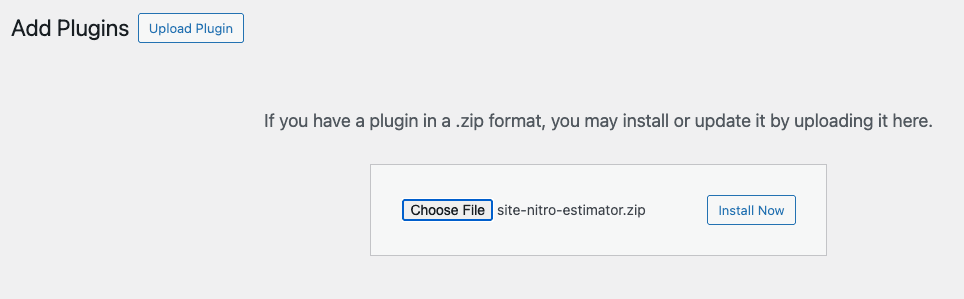
In your WordPress admin, go to Plugins → Add New Plugin → Upload Plugin. Click Choose File, select the .zip file you downloaded, then click Install Now.
Step 3 — Activate the plugin #
After installation completes, click Activate Plugin. WordPress will activate Site Nitro: Estimator and add it to your admin menu.
What happens on activation: When activated, Site Nitro: Estimator creates its database tables for lead storage and seeds your settings with sensible defaults. No configuration is required before the plugin is functional — but you will need to complete the steps in Section 3 before embedding a calculator.
3. Minimum Required Settings #
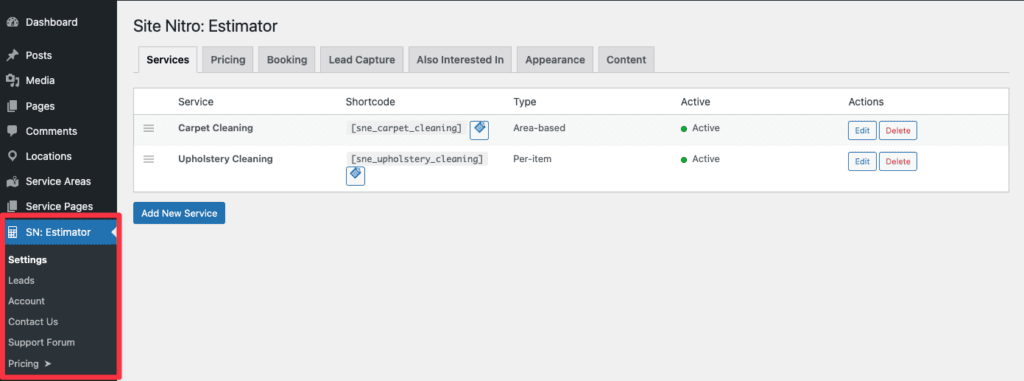
Before embedding a calculator, you need to configure three things: at least one active service, a booking URL or lead capture form, and your shortcode placement. All settings are found under SN: Estimator → Settings in your WordPress admin.
3.1 Create Your First Service #
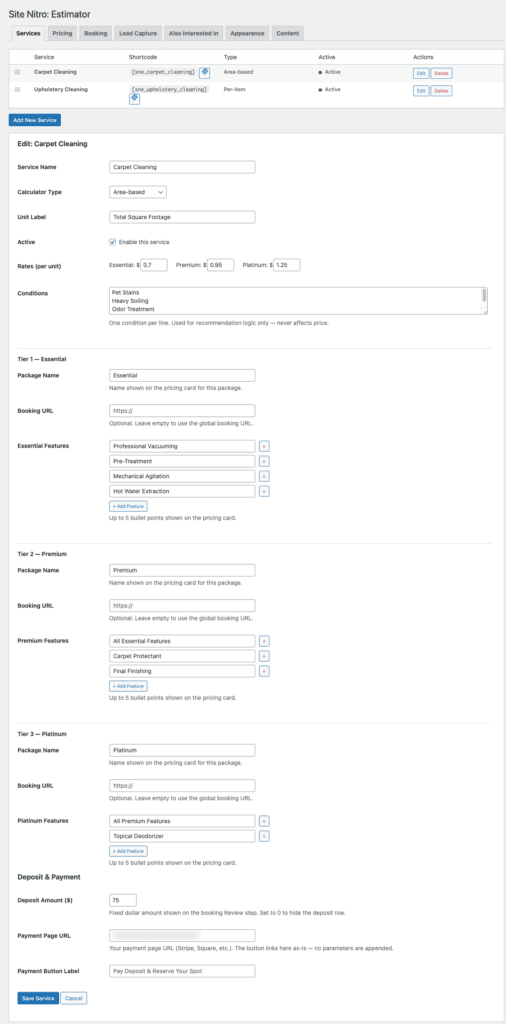
Navigate to SN: Estimator → Settings → Services tab. You will see a list of pre-configured services for Residential Cleaning. By default, only Carpet Cleaning is active.
To set up Carpet Cleaning:
- Click Edit next to Carpet Cleaning.
- Confirm the Calculator Type is set to Area-based.
- Set your three tier rates. These are your per-square-foot prices for each package. Example: Essential $0.70, Premium $0.95, Platinum $1.25.
- Give each tier a name (e.g. Essential, Premium, Platinum — or Good, Better, Best — whatever matches your brand).
- Optionally add up to 5 feature bullet points per tier to display on the pricing cards.
- Confirm the Active checkbox is checked.
- Click Save Service.
Tip — Tier Rates: Start with your standard market rates. You can adjust them at any time from the Services tab and the calculator will immediately reflect the updated prices. Nothing needs to be re-embedded when you change rates.
3.2 Configure Your Booking URL or Lead Capture #
Customers who get an estimate need a clear next step. Site Nitro: Estimator supports two paths — you can use one or both:
- Book Online: Links directly to an external booking page (your CRM scheduler, Square, etc.). Set this in Settings → Booking → Primary Booking URL. Leave empty to hide the Book Online option.
- Reserve Your Spot: An in-page booking form that collects customer details, scheduling preferences, service address, and optionally processes a deposit. Enable this in Settings → Lead Capture.
To enable the Reserve Your Spot form (recommended for most service businesses):
- Go to Settings → Lead Capture.
- Check Enable lead capture form.
- Enter the email address where new booking requests should be sent. Defaults to your WordPress admin email if left blank.
- Click Save.
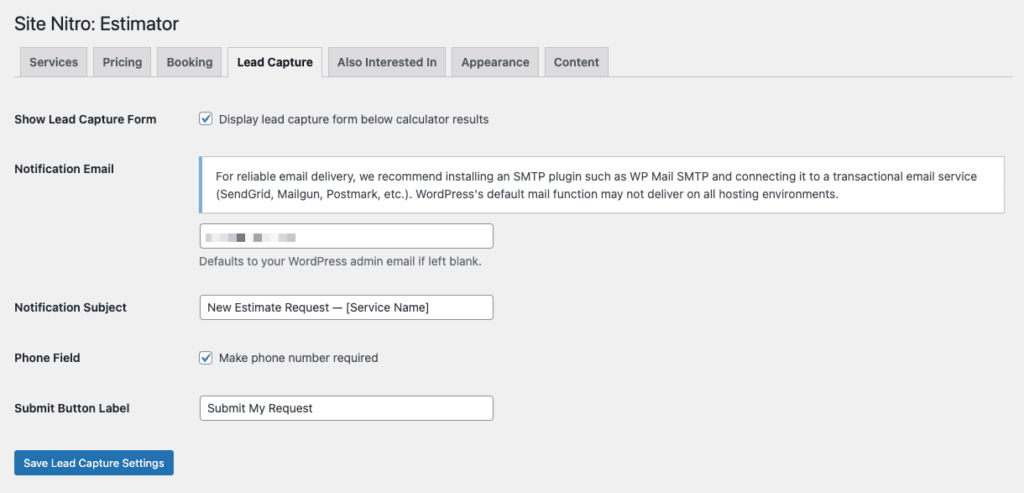
Note — Email Deliverability: For reliable notification email delivery, install and configure WP Mail SMTP connected to a transactional email service such as SendGrid or Mailgun. Without this, notification emails may land in spam or fail to deliver on some hosting environments.
3.3 Set Your Available Days and Time Windows #
If using the Reserve Your Spot booking form, configure which days and time windows customers can request. This prevents customers from selecting times your business is not available.
- Go to Settings → Booking → Booking Availability.
- Check only the days your business operates (e.g. Monday through Friday).
- Check only the time windows you offer (e.g. Morning and Afternoon — uncheck Evening if you do not offer evening appointments).
- Click Save.

4. Embedding Your Calculator #
Each service generates a unique shortcode that you paste into any page, post, or widget area. The calculator renders wherever the shortcode is placed.
4.1 Find Your Shortcode #
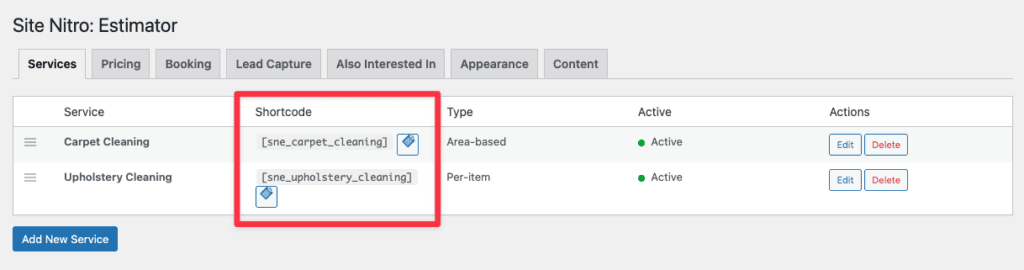
Go to SN: Estimator → Settings → Services tab. Each service row shows its shortcode with a copy button. Click the copy icon next to Carpet Cleaning to copy the shortcode to your clipboard.
The Carpet Cleaning shortcode looks like this:
[sne_carpet_cleaning]
4.2 Add the Shortcode to a Page #
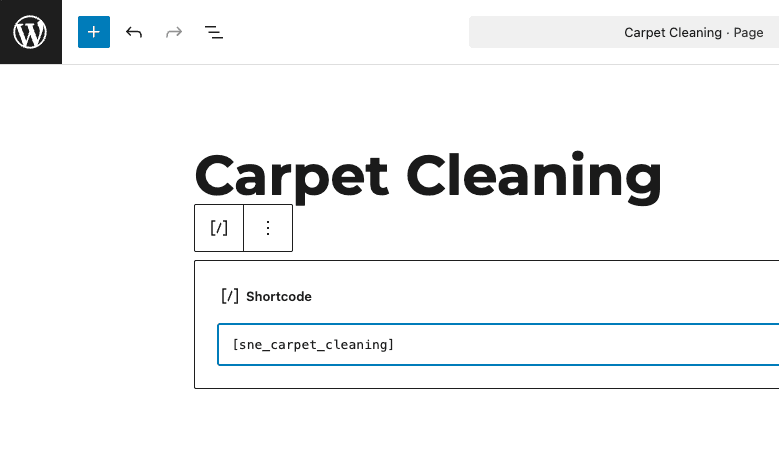
Open the page where you want the calculator to appear — typically your Carpet Cleaning service page. In the Gutenberg block editor, add a Shortcode block and paste the shortcode. In a classic editor, paste it directly into the content area.
For best results, place the calculator:
- Near the top of the service page — above the fold on desktop
- After a brief introduction paragraph — give the customer context before showing prices
- On a page dedicated to that specific service — one calculator per service page
Tip — One Shortcode Per Page: Each shortcode is self-contained. Embed
[sne_carpet_cleaning]on your carpet cleaning page,[sne_upholstery_cleaning]on your upholstery page, and so on. The calculator assets only load on pages that contain a shortcode, keeping your site fast on all other pages.
- Publish or update the page.
- View the page in a browser to confirm the calculator renders correctly.
5. Testing Your Calculator #
Before directing customers to the page, run through the full customer experience yourself to confirm everything is working correctly.
Step 1 — Test the estimate #
- Enter a square footage value (e.g. 1500).
- Select a carpet situation option.
- Optionally check one or two condition boxes.
- Click Get Estimate.
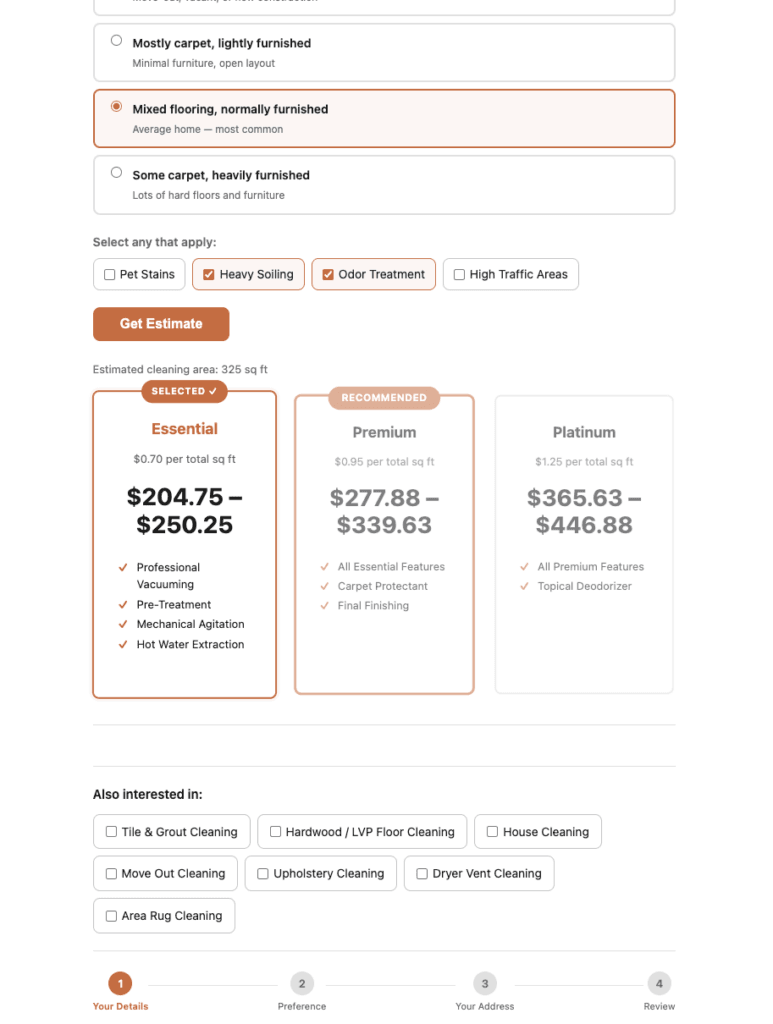
- Confirm three pricing cards appear with the correct rates and ranges.
- Click each card and confirm it highlights with the Selected badge and the other cards dim.
Step 2 — Test the booking form #
- Scroll below the pricing cards — confirm the Reserve Your Spot section heading appears.
- Complete Step 1 (Your Details) — enter name, email, phone.
- Complete Step 2 (Preference) — select a date and time window.
- Complete Step 3 (Service Address) — enter a test address.
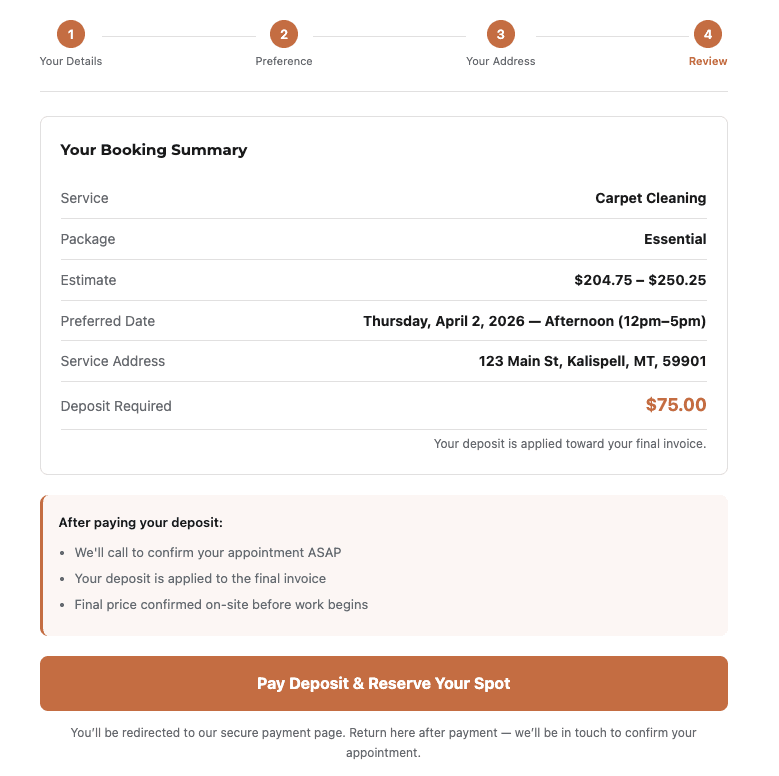
- Review Step 4 — confirm your service, package, estimate, date, and address all appear correctly in the summary.
- Click the payment button if configured, or submit the form.
Step 3 — Confirm lead capture #
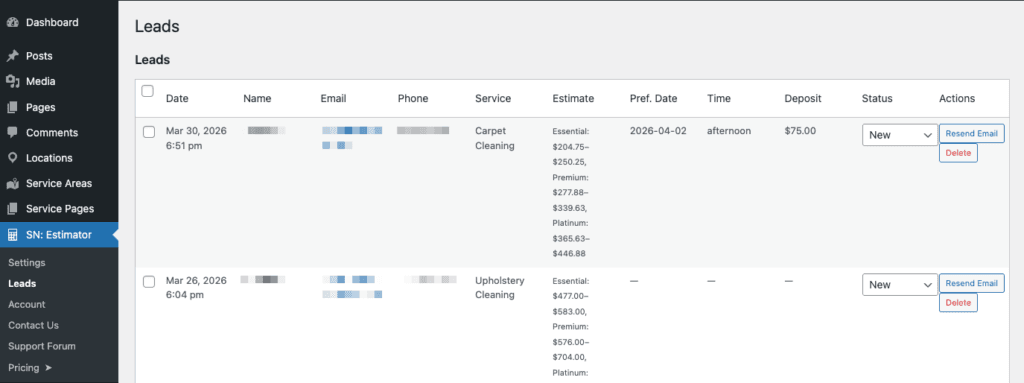
- Go to SN: Estimator → Leads in your WordPress admin.
- Confirm your test submission appears as a new lead with status “New”.
- Check the notification email inbox you configured — confirm the owner notification email arrived with all the lead details.
⚠ If the notification email did not arrive: Check that WP Mail SMTP is installed and connected to your email service. Go to WP Mail SMTP → Tools → Email Test to send a test email and confirm your SMTP connection is working.
6. Next Steps #
Your calculator is now live. Here are the recommended next steps to get the most out of Site Nitro: Estimator:
- Customize your brand colors: Go to Settings → Appearance to match the calculator to your site’s color scheme.
- Update customer-facing text: Go to Settings → Content to customize the booking flow messages, step labels, and address placeholders.
- Add more services: Activate Upholstery Cleaning or add custom services from the Services tab.
- Set up a deposit: Go to the service edit form → Deposit & Payment to add a fixed deposit amount and payment link.
- Configure the “Also Interested In” section: Go to Settings → Also Interested In to capture additional service interest from customers.
Related Articles
- Setting Up Your First Service (Carpet Cleaning / Area-Based)
- Setting Up the Booking Flow & Deposit
- Managing Leads
- Customizing Colors & Content
Need help? Visit sitenitro.com/plugins/estimator or contact support.


