- Step 1 — Check Your Spam Folder
- Step 2 — Confirm the Notification Email Address
- Step 3 — Confirm Lead Capture is Enabled
- Step 4 — Install and Configure WP Mail SMTP
- Step 5 — Test Notification Email Directly
- Step 6 — Check for Email Filtering on the Receiving End
- Step 7 — Confirm the Lead Was Actually Submitted
- Step 8 — Check Your Hosting Provider's Email Restrictions
- Still Not Receiving Emails?
- Related Articles
When a customer submits a booking request, Site Nitro: Estimator sends a notification email to the address configured in your Lead Capture settings. If those emails are not arriving, this article walks through the most common causes and fixes.
Step 1 — Check Your Spam Folder #
Before troubleshooting the plugin, check your spam or junk folder. WordPress email sent without SMTP configuration frequently lands in spam because it comes from your server’s default mail function rather than a verified sending domain.
If the email is in spam:
- Mark it as “Not Spam” to help your mail client learn
- The long-term fix is configuring SMTP (see Step 4)
Step 2 — Confirm the Notification Email Address #
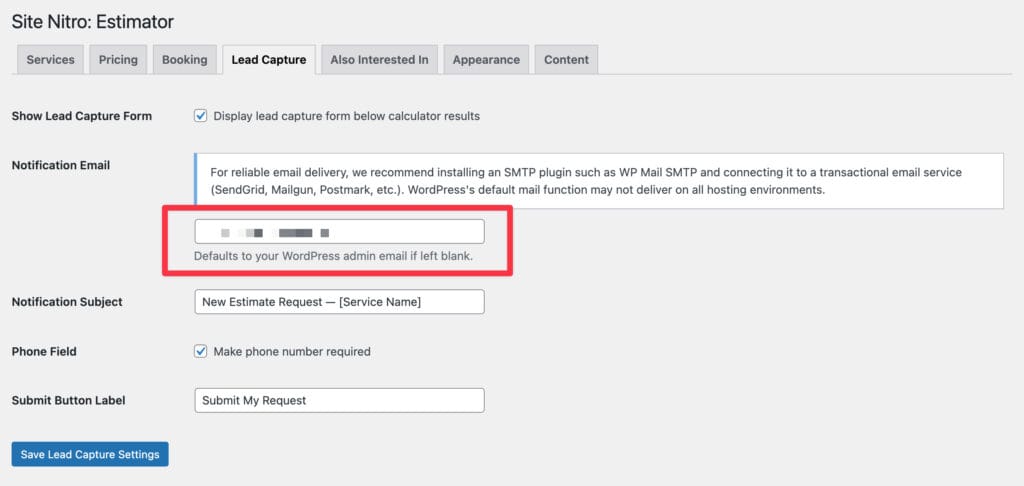
Go to SN: Estimator → Settings → Lead Capture tab. Check the Notification Email field.
- If the field is empty, notifications are sent to your WordPress admin email. Go to Settings → General to confirm what that address is.
- If the field contains an email address, confirm it is spelled correctly — a typo here means every notification goes nowhere.
- If you recently changed the address, clear your browser cache and submit a test lead to confirm the new address is receiving.
Step 3 — Confirm Lead Capture is Enabled #
Go to SN: Estimator → Settings → Lead Capture tab and confirm the Enable lead capture form checkbox is checked. When unchecked, the booking form is hidden, no leads are saved, and no notification emails are sent.
Step 4 — Install and Configure WP Mail SMTP #
This is the most common cause of missing notification emails. By default, WordPress sends email using the PHP mail() function — a basic server-level mail function that most hosting providers restrict or disable entirely because it is frequently abused for spam.
The fix: Install WP Mail SMTP and connect it to a transactional email service. This routes all WordPress email through a verified sending domain, which dramatically improves deliverability.
Recommended setup:
- Install the free WP Mail SMTP plugin from the WordPress plugin directory.
- Go to WP Mail SMTP → Settings.
- Choose a mailer. Recommended options:
- SendGrid — free up to 100 emails/day, reliable deliverability
- Mailgun — free up to 1,000 emails/month
- Postmark — excellent deliverability, paid after trial
- Gmail / Google Workspace — good option if you already use Google Workspace for your business email
- Follow the setup wizard for your chosen mailer.
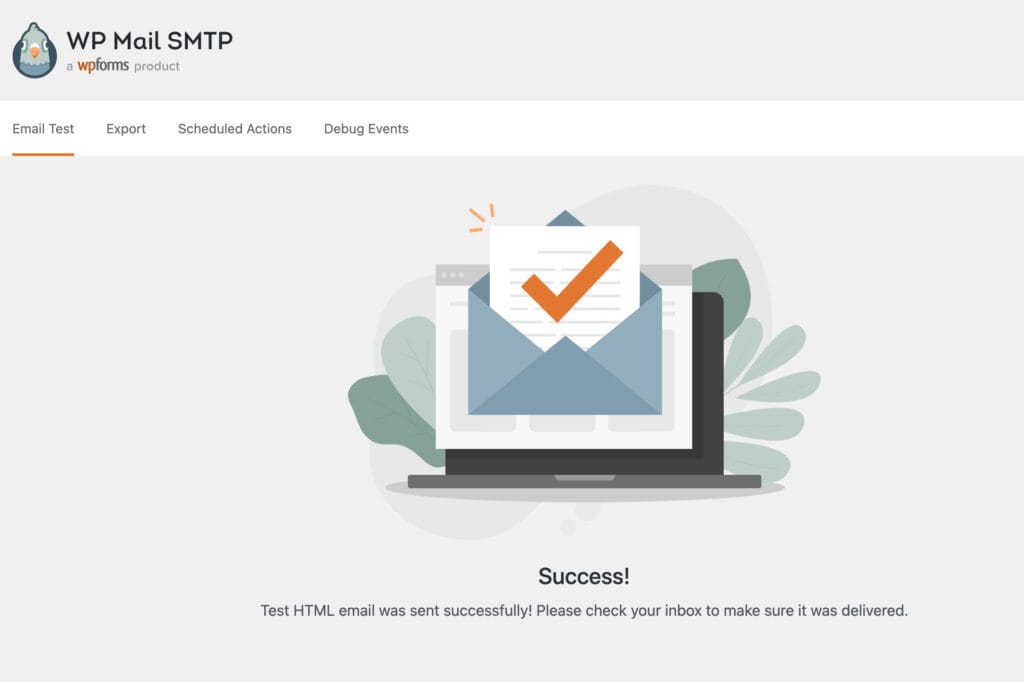
- Go to WP Mail SMTP → Tools → Email Test and send a test email to confirm it delivers.
Why this matters: A transactional email service authenticates your sending domain with SPF, DKIM, and DMARC records. Email clients like Gmail and Outlook use these records to verify the email is legitimate — without them, your notifications are treated as potential spam.
Step 5 — Test Notification Email Directly #
You can trigger a notification email without waiting for a customer to submit a form by resending an existing lead.
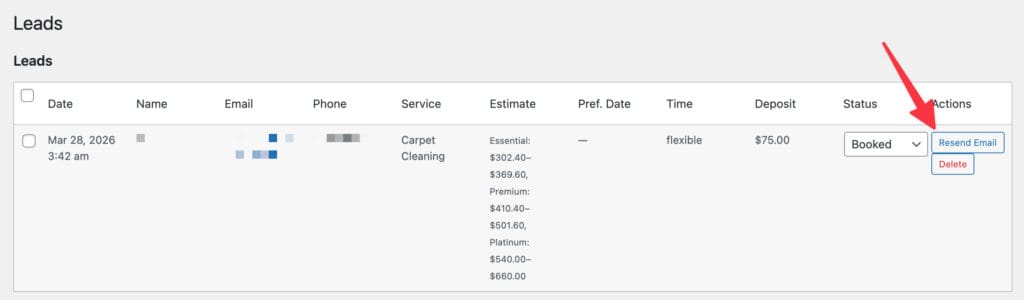
- Go to SN: Estimator → Leads.
- Find any existing lead in the table.
- Click Resend Email in the Actions column.
- Watch for the button to show Sent ✓ in green or Failed in red.
If it shows Failed, the email is failing at the PHP level — confirm WP Mail SMTP is configured correctly and the Email Test in Step 4 passes.
If it shows Sent ✓ but the email still does not arrive, the issue is deliverability — the email is leaving your server but being filtered before it reaches your inbox. This almost always means an SMTP configuration issue or a spam filter on the receiving end.
Step 6 — Check for Email Filtering on the Receiving End #
If WP Mail SMTP is configured and the Email Test passes but notifications still don’t arrive, the issue may be on the receiving side:
Corporate email filters: If your notification email address is a business email hosted on Microsoft 365, Google Workspace, or a corporate mail server, check with your IT department or email admin. Corporate mail filters can quietly discard email from unfamiliar domains without delivering it to spam.
Email aliases: If your notification address is an alias that forwards to another inbox, confirm the alias is working correctly by sending a manual test email to it.
Inbox rules: Check whether you have any inbox rules or filters that might be moving notification emails to a folder other than your inbox. Search your email client for “Site Nitro” or “Estimate Request” to find any emails that may have been auto-filed.
Step 7 — Confirm the Lead Was Actually Submitted #
Before assuming the email failed, confirm the lead was actually saved.
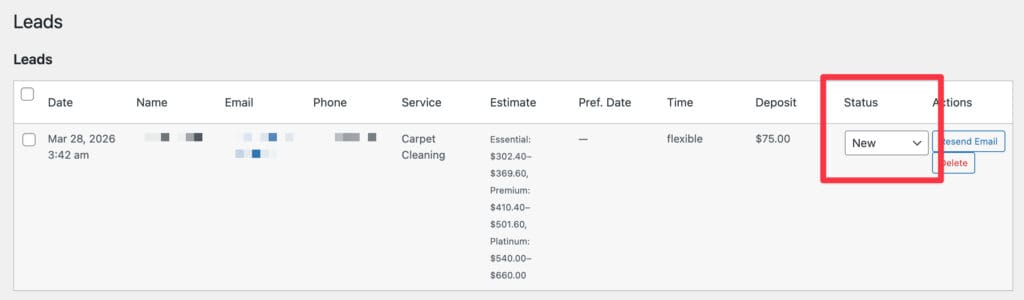
- Go to SN: Estimator → Leads.
- Check whether a new lead entry exists for the test submission.
If the lead appears in the table but no email arrived, the form submission succeeded but the email failed — follow Steps 4–6 to fix email delivery.
If the lead does not appear in the table, the form submission itself failed — the booking form may not be completing correctly. Check the browser console for JavaScript errors when submitting the form.
Step 8 — Check Your Hosting Provider’s Email Restrictions #
Some hosting providers restrict or completely disable outgoing email from PHP. This is common on shared hosting plans. If WP Mail SMTP is configured with a legitimate transactional email service, this should not be an issue — but if you are attempting to send without SMTP, your host may be blocking it silently.
Contact your hosting provider and ask:
- Is outgoing PHP mail (
mail()function) enabled on my account? - Are there any restrictions on outgoing email from my server?
If PHP mail is disabled, the only solution is configuring WP Mail SMTP as described in Step 4.
Still Not Receiving Emails? #
If you have completed all eight steps and notifications are still not arriving, contact support at sitenitro.com/support with the following information:
- Your hosting provider name
- Whether WP Mail SMTP is installed and which mailer is configured
- The result of the WP Mail SMTP Email Test (success or error message)
- Whether the Resend Email button shows Sent ✓ or Failed
- Whether leads are appearing in the SN: Estimator → Leads table
Related Articles #
- Managing Leads
- Setting Up the Booking Flow & Deposit
- Booking Form Not Submitting
Need help? Visit sitenitro.com/plugins/estimator or contact support.


