- Appearance Tab
- Color Settings
- Border Radius
- Branding — Powered By Badge
- Resetting to Defaults
- Content Tab
- Booking Flow — Next Steps
- Success Message
- Address Field Placeholders
- Booking Flow Step Labels
- Owner Notification — Deposit Reminder Note
- Applying Your Brand — A Quick Checklist
- Quick Reference
- Related Articles
Site Nitro: Estimator is designed to match your brand — not look like a generic plugin. This article covers the Appearance tab (colors, border radius, branding) and the Content tab (customer-facing text, step labels, address placeholders).
Appearance Tab #
Go to SN: Estimator → Settings → Appearance.
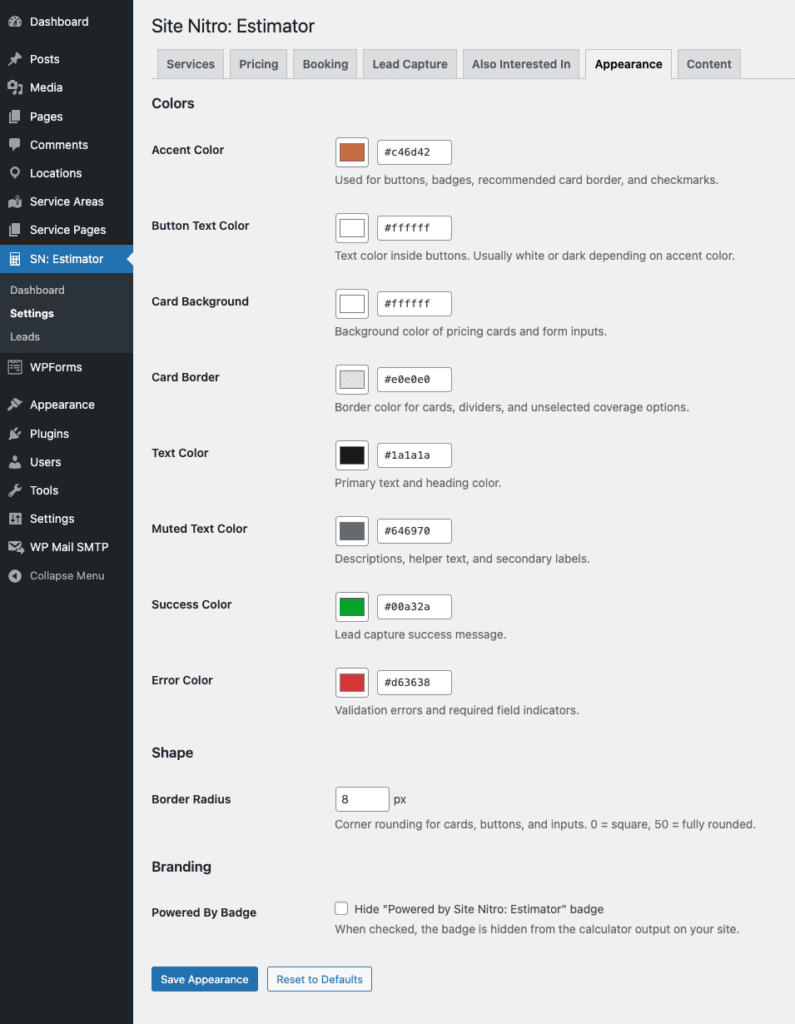
All color settings use CSS custom properties that apply globally to every calculator on your site. Changes take effect immediately — no need to re-embed shortcodes or clear plugin caches.
Color Settings #
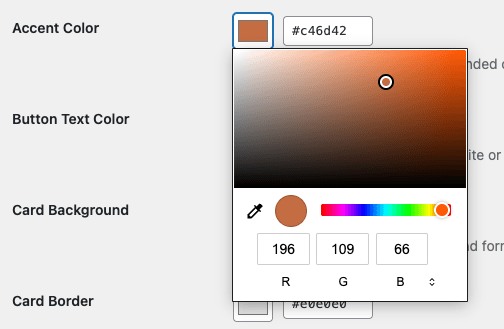
Accent Color #
The primary brand color used throughout the calculator — the Get Estimate button, selected card border, badge backgrounds, booking step indicators, and the copper accent line above the booking section.
Set this to your brand’s primary color. If your site uses a specific hex value for buttons or headings, use that same value here for a seamless look.
Default: #C46D42 (copper)
Button Text Color #
The text color on accent-colored buttons (Get Estimate, Continue, payment button). If your accent color is dark, set this to white (#FFFFFF). If your accent color is light, set this to a dark color for readability.
Default: #FFFFFF
Card Background #
The background color of the three pricing cards. Default is white, which works on most sites. If your page background is white and you want the cards to stand out, try a very light gray (#F8F8F8) or a light tint of your brand color.
Default: #FFFFFF
Card Border #
The border color around unselected pricing cards. Keep this subtle — it should frame the cards without competing with the selected card’s accent border.
Default: #E5E5E5
Text Color #
The primary text color inside the calculator — tier names, prices, feature lists, form labels. This should match or closely approximate your site’s body text color.
Default: #1A1A1A
Muted Text Color #
Secondary text used for sub-labels, helper text, and less prominent information. Should be lighter than your primary text color but still readable.
Default: #6B7280
Success Color #
The color used for success states — checkmarks in feature lists, confirmed booking indicators. Green works for most brands.
Default: #16A34A
Error Color #
The color used for validation error messages — required field warnings, invalid input indicators. Red works for most brands.
Default: #DC2626
Border Radius #
Controls how rounded the corners are on pricing cards, buttons, input fields, and pills. Drag the slider or enter a value in pixels.
| Value | Effect |
|---|---|
| 0px | Sharp corners — no rounding |
| 4–6px | Subtle rounding — modern, professional |
| 8–12px | Noticeable rounding — friendly, approachable |
| 20px+ | Very rounded — pill-shaped elements |
Default: 8px
Match this to your site’s existing UI style. If your theme uses sharp-cornered buttons, set this to 0. If your theme uses heavily rounded elements, increase it to match.
Branding — Powered By Badge #
The “Powered by Site Nitro: Estimator” badge appears at the bottom of the calculator output on Free installations.
Pro users can hide this badge by checking Hide “Powered by Site Nitro: Estimator” badge in the Branding section of the Appearance tab.
When unchecked (default), the badge is shown even on Pro — uncheck it to remove it. Free users see an upgrade prompt instead of the toggle.
Resetting to Defaults #
A Reset to Defaults button at the bottom of the Appearance tab restores all color and border radius settings to the plugin defaults. This is useful if you want to start fresh after experimenting with colors.
Note: Reset affects appearance settings only — it does not affect your services, booking configuration, or content settings.
Content Tab #
Go to SN: Estimator → Settings → Content.
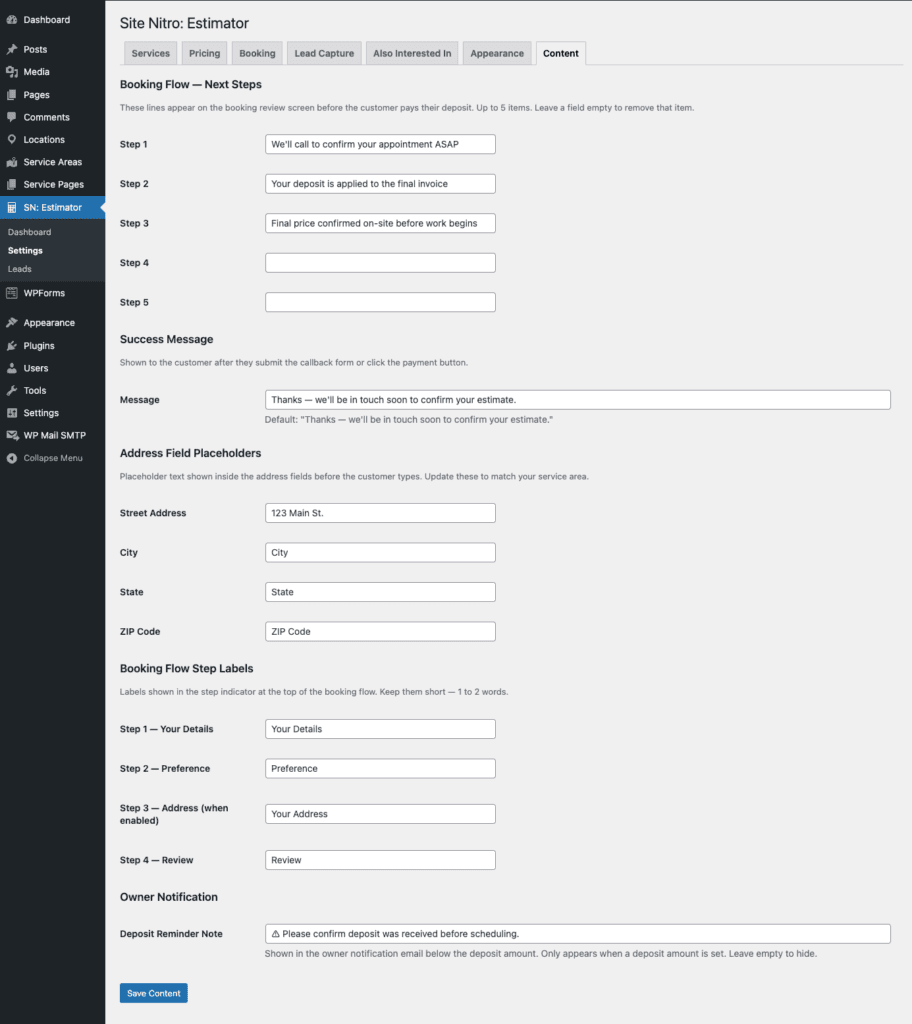
The Content tab controls the text customers see throughout the calculator and booking flow. None of these fields affect functionality — they only change what is displayed.
Booking Flow — Next Steps #
Up to five lines displayed on the Step 4 (Review) screen under the heading “After paying your deposit.” These set expectations for what happens after the customer submits their booking request.
Default:
- We’ll call to confirm your appointment ASAP
- Your deposit is applied to the final invoice
- Final price confirmed on-site before work begins
How to customize: Click into any field and update the text. Leave a field blank to remove that item — blank items are not displayed. Add up to five items total.
Tips for writing effective next steps:
- Be specific about your response time — “We’ll call within 2 business hours” is more reassuring than “We’ll call soon”
- Match your actual process — if you confirm by text, say text
- Keep each line to one clear action or expectation
- The third item about final price being confirmed on-site is worth keeping — it manages expectations and reduces disputes
Success Message #
Shown to the customer after they click the payment button, when no Thank You Page URL is configured in the Booking tab. This is the last thing the customer sees in the booking flow before they leave for the payment page.
Default: “Thanks — we’ll be in touch soon to confirm your estimate.”
Personalize this to match your brand voice and include a response timeframe if you have one:
- “Thanks! We’ll call within 2 business hours to confirm your appointment.”
- “You’re all set — our team will reach out shortly to lock in your schedule.”
- “Thank you for choosing [Business Name]. We’ll confirm your booking soon.”
Address Field Placeholders #
The example text shown inside each address field before the customer starts typing. Update these to reflect your service area so the placeholder feels relevant to local customers rather than generic.
| Field | Default | Local Example |
|---|---|---|
| Street Address | 123 Main St. | 456 Oak Ave. |
| City | City | Modesto |
| State | State | CA |
| ZIP Code | ZIP Code | 95354 |
These are placeholders only — they disappear as soon as the customer starts typing and are not submitted with the form.
Booking Flow Step Labels #
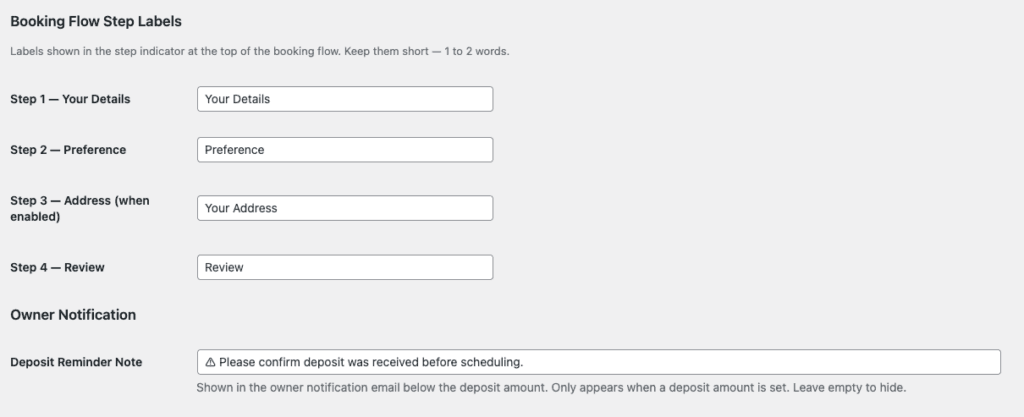
The labels shown in the step indicator at the top of the booking form. Keep them short — 1 to 2 words is ideal so they fit cleanly on mobile.
| Step | Default | Example Alternatives |
|---|---|---|
| Step 1 | Your Details | Contact Info |
| Step 2 | Preference | Schedule |
| Step 3 | Your Address | Service Address |
| Step 4 | Review | Confirm |
Note: Step 3 only appears in the step indicator when the address step is enabled in Settings → Booking → Service Address.
Owner Notification — Deposit Reminder Note #
A note shown in the owner notification email directly below the deposit amount. Reminds your office to verify the deposit was received before scheduling the appointment.
Default: “⚠ Please confirm deposit was received before scheduling.”
This only appears in the email when a deposit amount greater than $0 is configured for the service. Leave it blank to hide the note entirely.
Applying Your Brand — A Quick Checklist #
Use this checklist when setting up the calculator for the first time or for a new client site:
- [ ] Set Accent Color to match the site’s primary brand color
- [ ] Set Button Text Color — white for dark accents, dark for light accents
- [ ] Adjust Border Radius to match the site’s existing button and card style
- [ ] Update address placeholders to reflect the local service area
- [ ] Customize the Next Steps list to match the actual booking confirmation process
- [ ] Update the Success Message with a specific response timeframe
- [ ] If Pro — hide the Powered By badge if desired
Quick Reference #
| Setting | Location | What it controls |
|---|---|---|
| Accent Color | Appearance tab | Buttons, selected card border, badges, indicators |
| Button Text Color | Appearance tab | Text on accent-colored buttons |
| Card Background | Appearance tab | Background of pricing cards |
| Card Border | Appearance tab | Border color on unselected cards |
| Text Color | Appearance tab | Primary text throughout calculator |
| Muted Text Color | Appearance tab | Secondary/helper text |
| Success Color | Appearance tab | Checkmarks and success states |
| Error Color | Appearance tab | Validation error messages |
| Border Radius | Appearance tab | Corner rounding on all elements |
| Hide Powered By | Appearance tab | Remove badge (Pro only) |
| Next Steps List | Content tab | Expectations on Step 4 review screen |
| Success Message | Content tab | Message shown after payment click |
| Address Placeholders | Content tab | Example text in address fields |
| Step Labels | Content tab | Labels in booking form step indicator |
| Deposit Reminder Note | Content tab | Note in owner notification email |
Related Articles #
- Installation & First Setup
- Setting Up an Area-Based Service (Carpet Cleaning)
- Setting Up the Booking Flow & Deposit
- Managing Leads
Need help? Visit sitenitro.com/plugins/estimator or contact support.


