Every time a customer completes the Reserve Your Spot booking form, Site Nitro: Estimator saves their information as a lead. This article covers how to find and manage your leads, what each field means, and how to use the Leads page effectively.
Where to Find Your Leads #
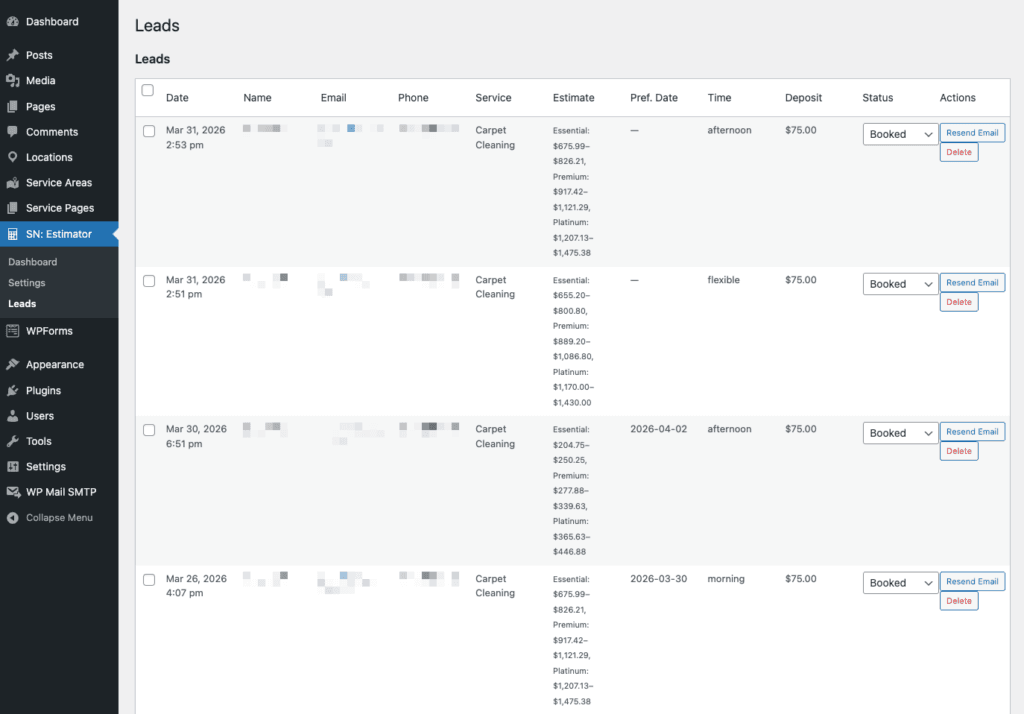
Go to SN: Estimator → Leads in your WordPress admin. This page shows every lead submitted through the booking form, newest first.
What Gets Captured #
Each lead record contains everything the customer entered in the booking form plus the estimate details at the time of submission:
| Field | Source |
|---|---|
| Name | Step 1 — Your Details |
| Step 1 — Your Details | |
| Phone | Step 1 — Your Details |
| Service | Which calculator they used |
| Selected Package | Which pricing tier they chose |
| Estimate Range | Price range shown at time of submission |
| Preferred Date | Step 2 — Preference |
| Time Preference | Step 2 — Preference |
| Preferred Days | Step 2 — Preference |
| Service Address | Step 3 — Service Address (if enabled) |
| Deposit Amount | Configured deposit for that service |
| Also Interested In | Services they checked in the Also Interested In section |
| Status | Set manually by your office |
| Submitted | Date and time of submission |
The Owner Notification Email #
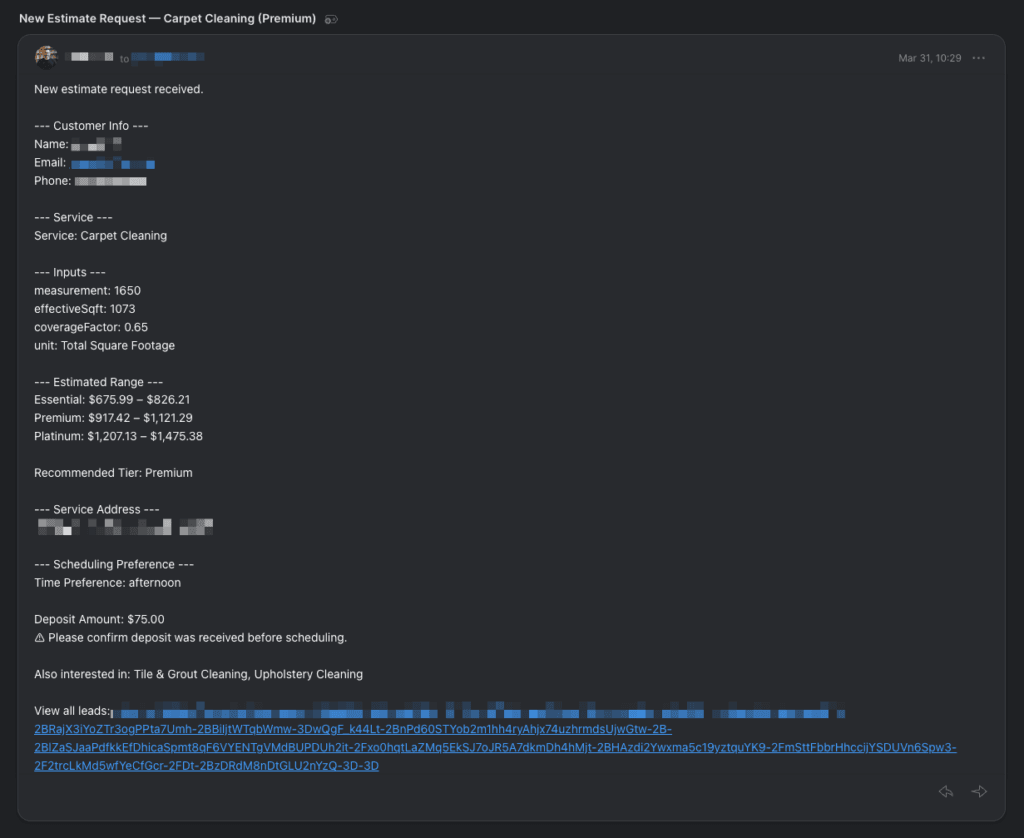
When a lead is submitted, Site Nitro: Estimator sends a notification email to the address configured in Settings → Lead Capture → Notification Email. This email contains all of the lead details so your office can follow up immediately without logging into WordPress.
The subject line includes the service name and selected package — for example:
New Estimate Request — Carpet Cleaning (Premium)
If notification emails are not arriving: Confirm WP Mail SMTP is installed and connected to a transactional email service. Go to WP Mail SMTP → Tools → Email Test to verify your SMTP connection is working.
Resending a Notification Email #
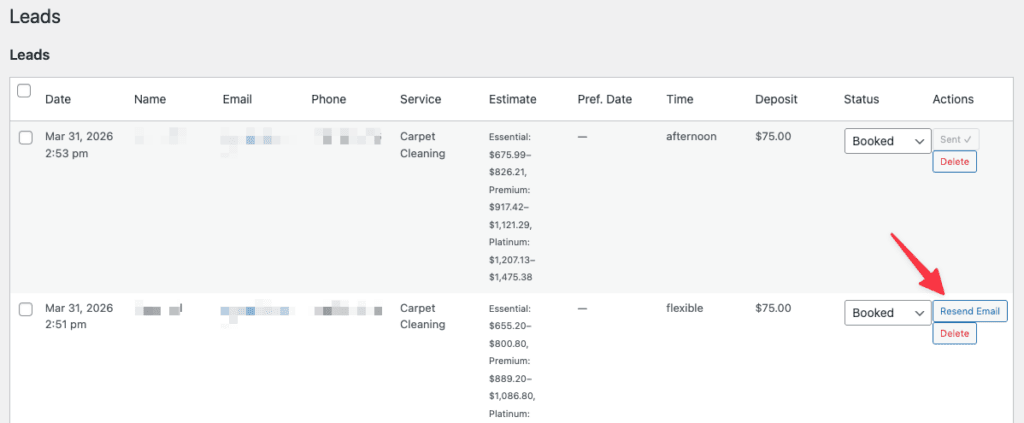
If a notification email was missed, deleted, or you want to forward the lead details to someone else, you can resend it directly from the Leads page.
- Find the lead in the table.
- Click Resend Email in the Actions column.
- The button shows Sending… briefly, then Sent ✓ in green when successful.
- If the send fails, the button shows Failed in red — check your SMTP settings.
Lead Status #
Each lead has a status field you can update to track where it is in your workflow. Use status to distinguish between new leads that haven’t been contacted yet and ones that have been handled.
Update a lead’s status by selecting a new value from the dropdown in the Status column and saving.
Tip: Even a simple two-status workflow (New → Contacted) is enough to prevent leads from falling through the cracks. Scan your Leads page at the start of each day and update any leads you followed up on the day before.
Deleting a Lead #
Click Delete in the Actions column to permanently remove a lead record. A confirmation prompt appears before the deletion completes.
Note: Deletion is permanent and cannot be undone. If you need to keep records for a period of time, export or note the lead details before deleting.
Lead Capture Settings #
Lead capture is configured in Settings → Lead Capture. Key settings that affect what gets stored:
Enable Lead Capture — Must be checked for leads to be saved. If unchecked, the Reserve Your Spot form is hidden and no leads are recorded.
Notification Email — The email address that receives new lead notifications. Defaults to your WordPress admin email if left blank.
Phone Required — When checked, customers must provide a phone number before submitting. Recommended for service businesses where phone follow-up is the primary contact method.
For full lead capture configuration details, see Setting Up the Booking Flow & Deposit.
Viewing Analytics #
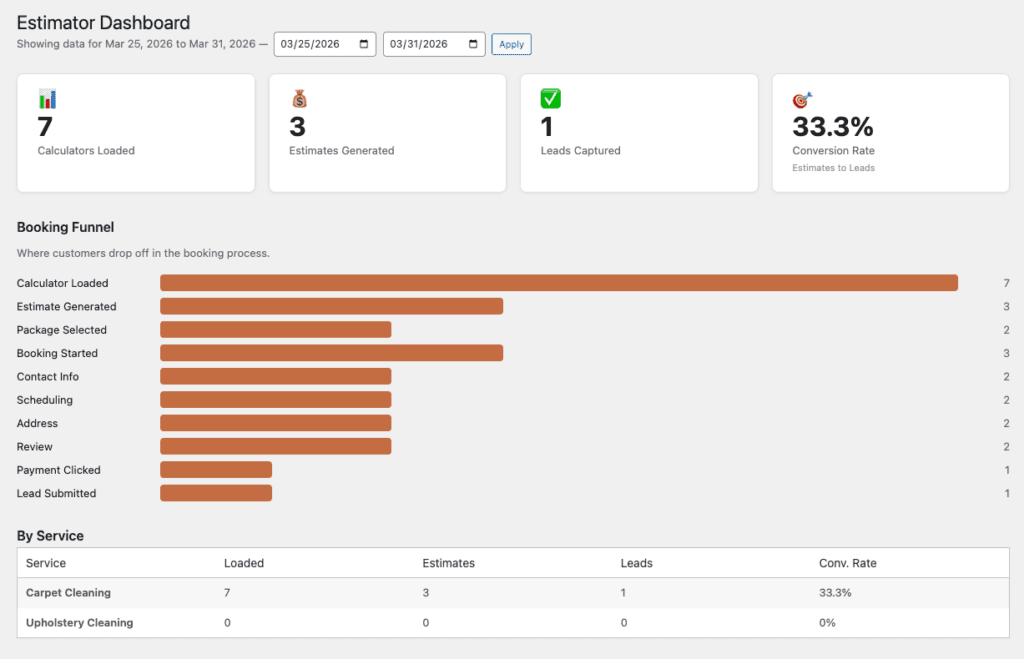
The number of leads captured is one of four key metrics shown on the Estimator Dashboard and the WordPress Dashboard widget. To see how your lead volume trends over time:
- Go to SN: Estimator → Dashboard for the full analytics view
- Check the Estimator Overview widget on your WordPress Dashboard for a quick 7-day summary
The dashboard shows leads alongside estimates generated and conversion rate — giving you a clear picture of how many visitors are moving from estimate to booking request.
Quick Reference #
| Task | Where |
|---|---|
| View all leads | SN: Estimator → Leads |
| Configure notification email | Settings → Lead Capture |
| Require phone number | Settings → Lead Capture |
| Resend notification email | Leads page → Actions → Resend Email |
| Delete a lead | Leads page → Actions → Delete |
| Enable/disable lead capture | Settings → Lead Capture → Enable Lead Capture |
| View lead analytics | SN: Estimator → Dashboard |
Related Articles #
- Installation & First Setup
- Setting Up the Booking Flow & Deposit
- Customizing Colors & Content
Need help? Visit sitenitro.com/plugins/estimator or contact support.


