- Opening the Service Edit Form
- Service Name and Calculator Type
- Setting Your Package Tier Names
- Setting Tier Rates
- Adding Tier Features
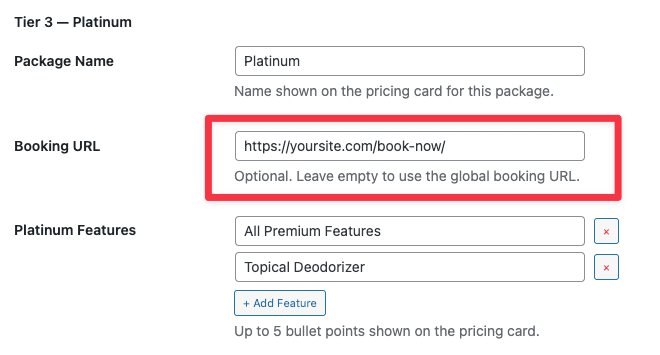
- Per-Tier Booking URLs
- Conditions — How Recommendation Logic Works
- The Coverage Selector — Helping Customers Estimate Accurately
- Deposit Settings
- Saving and Testing
- Quick Reference — Area-Based Service Fields
- Using Area-Based Pricing for Other Services
- Related Articles
Area-based pricing is the most common calculator type in Site Nitro: Estimator. The customer enters a square footage value, selects a coverage option, and the calculator produces an instant price range across your three service packages. This article covers every field in the area-based service edit form and explains what each setting does for the customer.
This article covers: Any service priced per square foot or per unit of area — carpet cleaning, tile and grout cleaning, hardwood floor cleaning, pressure washing, lawn care, painting, and more. Examples throughout this article use carpet cleaning but all settings apply equally to any area-based service.
Opening the Service Edit Form #
Opening the Service Edit Form
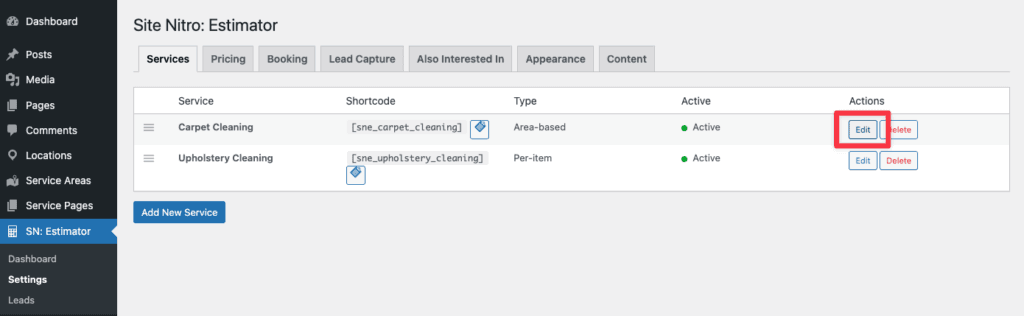
Go to SN: Estimator → Settings → Services tab. Find the service you want to configure and click Edit. The edit form opens inline below the services list.
To add a new area-based service, click Add New Service, enter a name, and set the Calculator Type to Area-based. The plugin ships with Carpet Cleaning pre-configured as an area-based service — you can edit it as a starting point or use it as a reference when building new services.
Service Name and Calculator Type #
Service Name is the label shown to customers on the pricing cards and in the booking summary. Keep it clear and specific — “Carpet Cleaning” works better than “Cleaning Service.”
Calculator Type must be set to Area-based for square footage pricing. This controls the entire calculator UI — inputs, pricing logic, and result display. Do not change this after the service is live, as it will break the calculator output.
Active — the checkbox that makes the service available on your site. Uncheck to temporarily hide the calculator without deleting the service configuration.
Setting Your Package Tier Names #
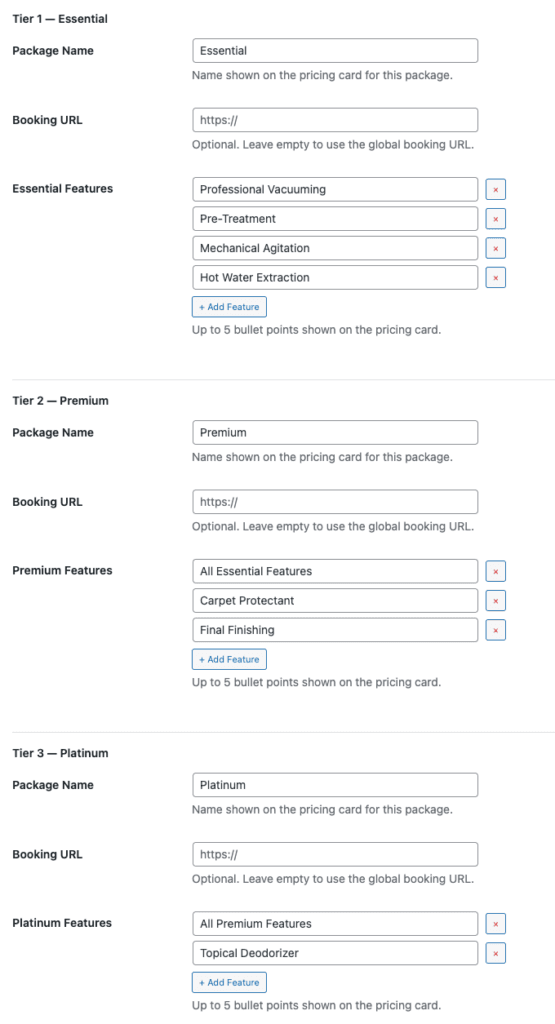
Each service has three pricing tiers. The names default to Essential, Premium, and Platinum — but you can change these to match your brand.
Common naming conventions used by cleaning businesses:
| Option | Tier 1 | Tier 2 | Tier 3 |
|---|---|---|---|
| Default | Essential | Premium | Platinum |
| Simple | Basic | Standard | Premium |
| Quality-focused | Good | Better | Best |
| Outcome-focused | Clean | Deep Clean | Restoration |
Tip: Choose names that describe what the customer gets, not just a quality level. “Maintenance Clean,” “Deep Clean,” and “Move-In/Move-Out” are more meaningful to a homeowner than “Bronze, Silver, Gold.”
The tier names you set here appear on the pricing cards, in the booking summary, and in the owner notification email.
Setting Tier Rates #
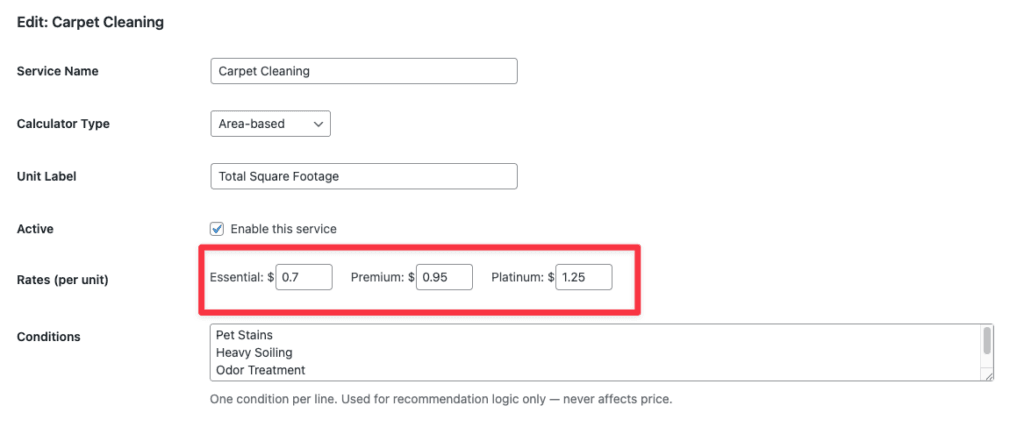
Each tier has a rate field expressed in dollars per square foot (or per unit, if you change the unit label). This is the core pricing input — the calculator multiplies this rate by the customer’s effective cleaning area to produce the estimate.
Example rates for carpet cleaning:
| Tier | Rate | What it typically includes |
|---|---|---|
| Essential | $0.65–$0.80/sqft | Standard hot water extraction |
| Premium | $0.90–$1.10/sqft | Pre-treatment + extraction |
| Platinum | $1.20–$1.50/sqft | Full restoration treatment |
How the estimate range works (Pro): The calculator displays a price range rather than a single number — for example, $315–$385. The range is calculated as your rate × square footage ±10% (the variance percentage, configurable in Settings → Pricing). This gives customers a realistic expectation while protecting you from being held to a single exact price before you’ve seen the job.
Free version: Shows an exact calculated price (rate × square footage) with no range.
Adding Tier Features #
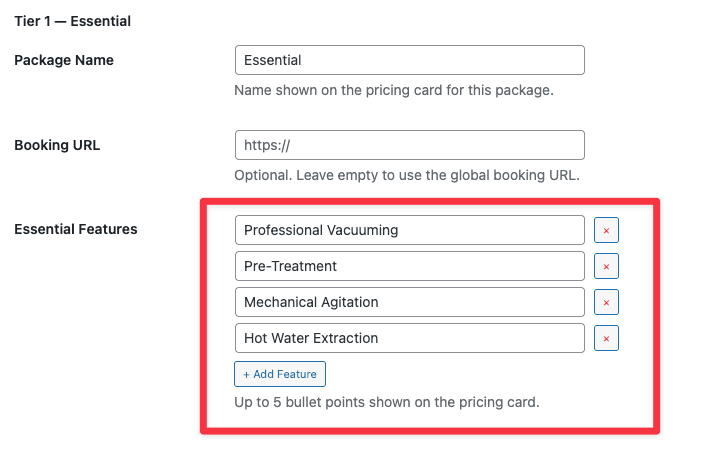
Each tier can display up to five bullet points on its pricing card. These give the customer a clear picture of what they get at each level and help justify the price difference between tiers.
How to add features:
- Click + Add Feature below the tier you want to edit.
- Type the feature text — keep it to one short line.
- Add up to 5 features per tier.
- Features display in the order you enter them. Remove any feature with the × button.
Example feature lists for carpet cleaning:
Essential:
- Professional vacuuming
- Pre-treatment spray
- Hot water extraction
- Speed dry
Premium:
- All Essential features
- Carpet protectant application
- Spot treatment included
- Final grooming
Platinum:
- All Premium features
- Pet odor treatment
- Stain guard application
- Priority scheduling
Tip: Start the Premium and Platinum lists with “All [previous tier] features” — this makes the upgrade value immediately obvious without repeating every line item.
Per-Tier Booking URLs #
By default, all three Book Now buttons link to the global booking URL you set in Settings → Booking. You can override this per tier if your booking system uses different links for different service levels.
When to use per-tier booking URLs:
- Your CRM has separate booking flows for standard vs. premium jobs
- Premium or Platinum tiers require a phone call rather than online booking
- You want to route high-value jobs to a different scheduler
How to set a per-tier URL:
Enter the URL in the Booking URL field under each tier. Leave it empty to use the global booking URL. If all three tiers use the same booking system, leave all three fields empty and set the URL once in Settings → Booking.
Conditions — How Recommendation Logic Works #
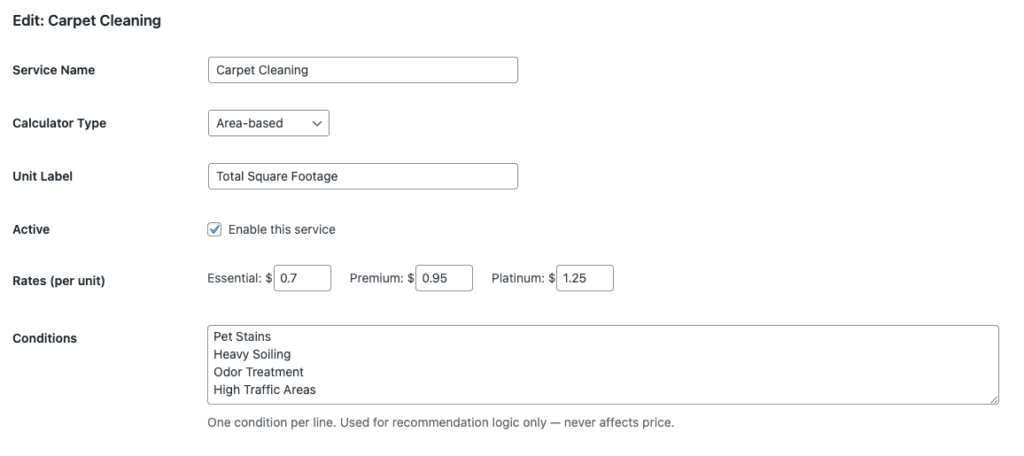
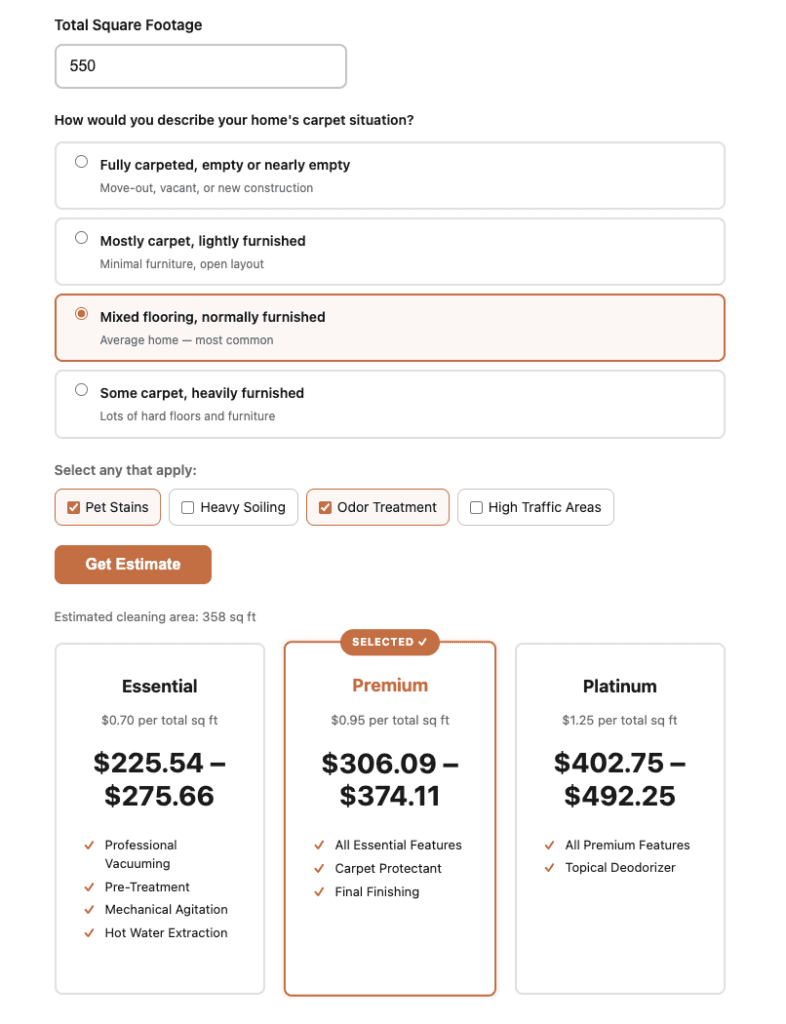
Conditions are the checkboxes the customer sees below the square footage input — for example: Pet Stains, Heavy Soiling, Odor Treatment, High Traffic Areas.
Important: Conditions never change the price. They only affect which tier gets the “Recommended” badge on the result cards.
The recommendation logic works like this:
| Conditions checked | Recommended tier |
|---|---|
| 0 or 1 | Tier 1 (Essential) |
| 2 | Tier 2 (Premium) |
| 3 or more | Tier 3 (Platinum) |
This nudges customers with more complex cleaning needs toward your higher-value packages — without forcing them into a tier or hiding the price of other options.
Editing your conditions:
Conditions are stored as a list in the Conditions field, one per line. Edit them to match the issues your customers commonly face. Keep each condition to 2–4 words so they fit cleanly in the checkbox UI.
Note: The Recommended badge is a suggestion, not a restriction. The customer can select any tier regardless of which conditions they checked.
The Coverage Selector — Helping Customers Estimate Accurately #
One of the most common problems with carpet cleaning estimates is that customers don’t know their “cleanable” square footage. They know their home is 2,000 sqft but they don’t know how much of that is carpet, or how much is blocked by furniture.
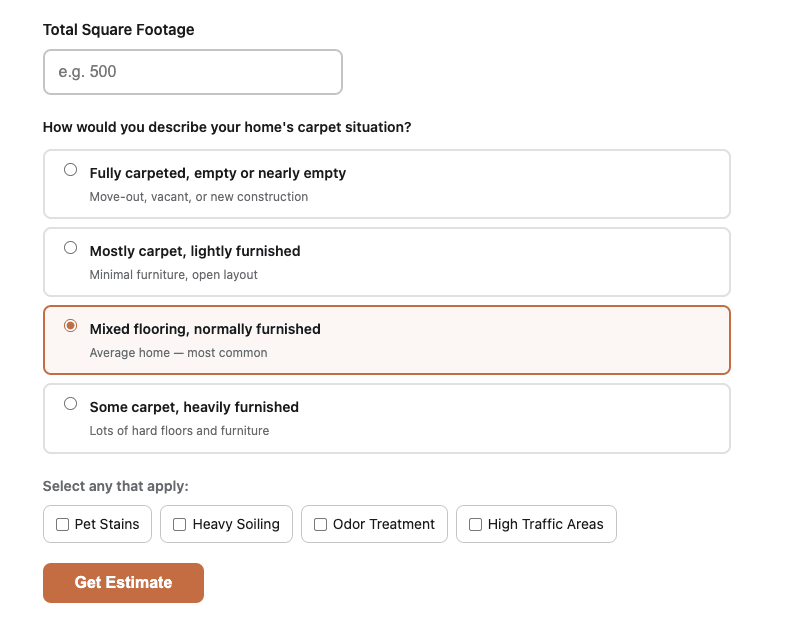
Site Nitro: Estimator solves this with a coverage selector — four plain-language options that the customer picks to describe their home. The calculator applies a multiplier to their total square footage to arrive at a more accurate cleaning area estimate.
| Option | Multiplier | Typical scenario |
|---|---|---|
| Fully carpeted, empty or nearly empty | 95% | Move-out, vacant rental, new construction |
| Mostly carpet, lightly furnished | 80% | Open layout, minimal furniture |
| Mixed flooring, normally furnished | 65% | Average home — selected by default |
| Some carpet, heavily furnished | 45% | Lots of hard floors, full furniture |
Example: A customer with a 2,000 sqft home selects “Mixed flooring, normally furnished.” The calculator uses 1,300 sqft (2,000 × 65%) for pricing. The result card shows “Estimated cleaning area: 1,300 sq ft” so the customer understands why the price is what it is.
This single feature does more to produce accurate estimates than any other part of the calculator — customers stop over-estimating based on total home size, and you stop arriving to jobs expecting more square footage than is actually cleanable.
Deposit Settings #
If you want to collect a deposit when a customer reserves their spot, configure it here rather than in the global settings. Deposit settings are per-service so you can charge different deposit amounts for different services.
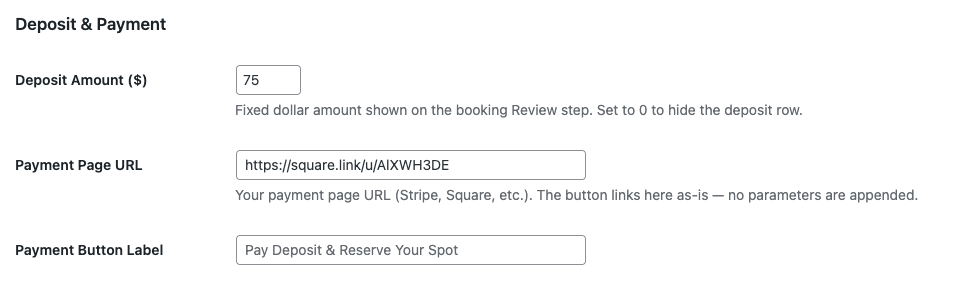
Deposit Amount ($): The fixed dollar amount shown on the booking review screen. Set to 0 to disable deposit collection for this service.
Payment Page URL: Your payment link from Stripe, Square, or any other processor. The Book Now button links here directly — no amount is passed in the URL. Create a fixed-price payment link in your payment processor for the exact deposit amount.
Payment Button Label: The text on the payment button. Default is “Pay Deposit & Reserve Your Spot.”
Important: The Deposit Amount and Payment Page URL must match. If you set a $75 deposit amount, create a $75 fixed payment link and paste that URL here. The plugin displays the amount for transparency but the actual charge is handled by your payment processor.
Saving and Testing #
Click Save Service when your configuration is complete. The service edit form closes and your changes take effect immediately on any page where the shortcode is embedded — no re-publishing required.
To test your changes:
- Open the page where your calculator shortcode is embedded.
- Hard refresh the page (Ctrl+Shift+R on Windows, Cmd+Shift+R on Mac) to clear any cached version.
- Enter a square footage value and click Get Estimate.
- Confirm the three cards show your updated tier names, rates, and features.
- Check that the coverage selector options appear and that switching between them changes the estimated cleaning area shown above the cards.
- Check one condition box and confirm the Recommended badge moves to Tier 1 or 2 as expected.
Quick Reference — Area-Based Service Fields #
| Field | Required | What it controls |
|---|---|---|
| Service Name | Yes | Label on cards and booking summary |
| Calculator Type | Yes | Must be Area-based |
| Active | Yes | Whether shortcode renders on front end |
| Tier Names (×3) | Yes | Package labels on cards |
| Tier Rates (×3) | Yes | Per-sqft price for each package |
| Tier Features (×5 each) | No | Bullet points on pricing cards |
| Per-Tier Booking URLs | No | Override global booking URL per package |
| Conditions | No | Checkbox options that drive recommendation badge |
| Deposit Amount | No | Fixed deposit shown on booking review |
| Payment Page URL | No | Payment processor link for deposit |
| Payment Button Label | No | Text on deposit payment button |
Using Area-Based Pricing for Other Services #
The same fields and configuration apply to any service you price by area. Here are examples of how to adapt the settings for common service types:
| Service | Unit Label | Tier 1 Rate | Tier 2 Rate | Tier 3 Rate | Example Conditions |
|---|---|---|---|---|---|
| Carpet Cleaning | Square Footage | $0.70/sqft | $0.95/sqft | $1.25/sqft | Pet Stains, Heavy Soiling, Odor Treatment |
| Tile & Grout Cleaning | Square Footage | $0.55/sqft | $0.80/sqft | $1.10/sqft | Heavy Staining, Grout Sealing Needed |
| Hardwood / LVP Cleaning | Square Footage | $0.40/sqft | $0.60/sqft | $0.85/sqft | Heavy Buildup, Pet Stains, Deep Scrub |
| Pressure Washing | Square Footage | $0.15/sqft | $0.25/sqft | $0.40/sqft | Oil Stains, Heavy Mildew, Rust Staining |
| Lawn Care | Square Footage | $0.03/sqft | $0.05/sqft | $0.08/sqft | Overgrown, Edging Needed, Leaf Removal |
| Interior Painting | Square Footage | $1.50/sqft | $2.25/sqft | $3.00/sqft | Repairs Needed, High Ceilings, Dark Colors |
A few tips when setting up a non-cleaning service:
- Unit Label — Change this to match what your customer is measuring. “Square Footage” works for most services but you could use “Square Feet,” “Sq Ft,” or any label that fits your industry.
- Coverage Selector — The four coverage options (fully carpeted, mostly carpet, mixed flooring, heavily furnished) are written for carpet cleaning. For other services, consider whether the coverage selector makes sense. For pressure washing a driveway, the customer knows the full area is being cleaned — the selector may not add value. Leave it configured but note that the “Mixed flooring, normally furnished” option (65% multiplier) is the most commonly selected default for most homes.
- Conditions — Rename these to match your service. For pressure washing: “Oil Stains,” “Heavy Mildew,” “Rust Staining.” For lawn care: “Overgrown,” “Leaves to Remove,” “Edging Needed.” The conditions drive the tier recommendation badge — more conditions checked pushes toward a higher tier.
- Tier Names — Rename tiers to match your service offering. “Basic Wash,” “Deep Clean,” “Full Restoration” works well for pressure washing. “Mow Only,” “Mow + Edge,” “Full Service” works well for lawn care.
Related Articles #
- Installation & First Setup
- Setting Up the Booking Flow & Deposit
- Setting Up a Per-Item Service (Upholstery Cleaning)
- Customizing Colors & Content
Need help? Visit sitenitro.com/plugins/estimator or contact support.


