When you first activate Site Nitro: Locations, the setup wizard launches automatically. It walks you through the essential configuration in 5–10 minutes so your first location page is ready to go with accurate schema, correct URLs, and your brand color applied.
The wizard is optional — you can skip it at any time and configure everything manually in Settings > Site Nitro: Locations. All wizard fields write to the same settings as the settings page, so there’s no difference in outcome either way.
The wizard has 7 steps: Welcome → Business Info → Schema & Look → Services → CTAs → Newsletter → Complete.
Accessing the Wizard #
The wizard appears automatically on first activation. If you skipped it or want to run through it again, you can relaunch it from the plugin settings page.
Step 1: Welcome #
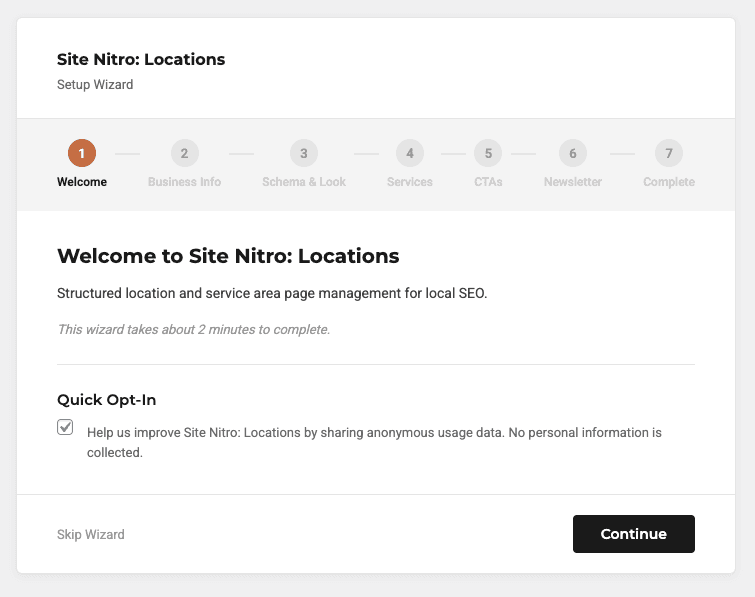
The first screen introduces the plugin and includes a Freemius opt-in prompt. Freemius is the licensing and update system the plugin uses.
Opting in shares basic diagnostic data (WordPress version, PHP version, plugin version) and enables license management features. Opting out or skipping still allows the plugin to function fully — you can activate a Pro license later without having opted in here.
This step does not configure any plugin settings. Click Continue (or the opt-in/skip option) to proceed.
Step 2: Business Info #
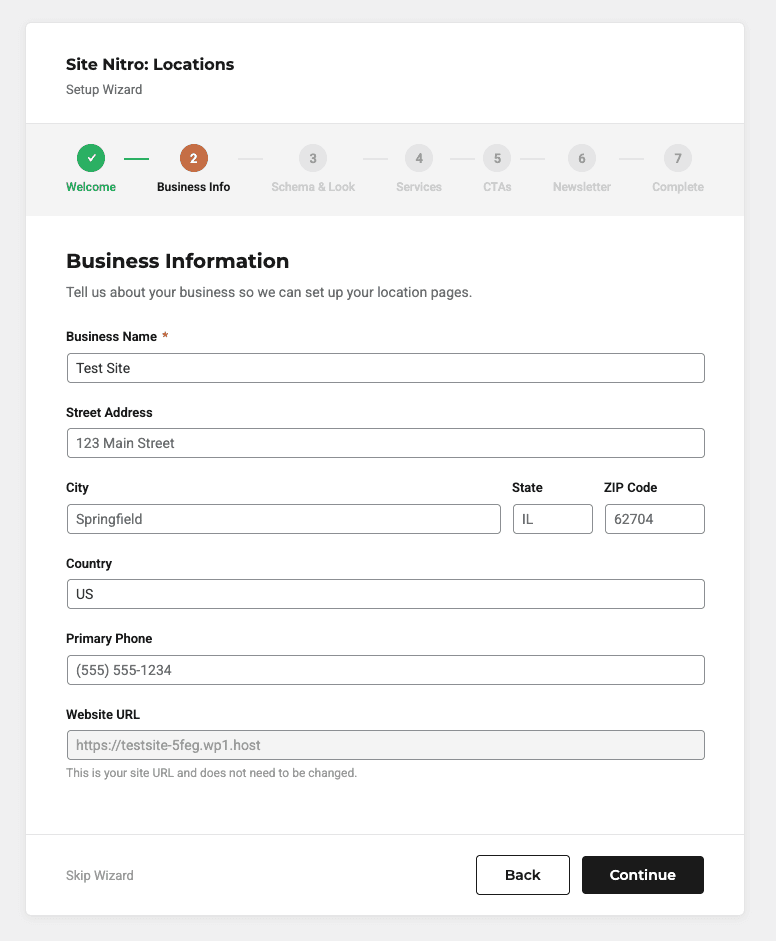
Enter the core details that appear throughout your location pages and in schema markup:
| Field | What It’s Used For |
|---|---|
| Business Name | Appears in LocalBusiness schema as the name property and in page templates |
| Primary Phone | Displayed on all location and service area pages; formatted as a click-to-call tel: link |
| Website URL | Used in schema markup as the business URL; pre-filled with your WordPress site URL |
These fields can be updated at any time in Settings > General.
Step 3: Schema & Look #
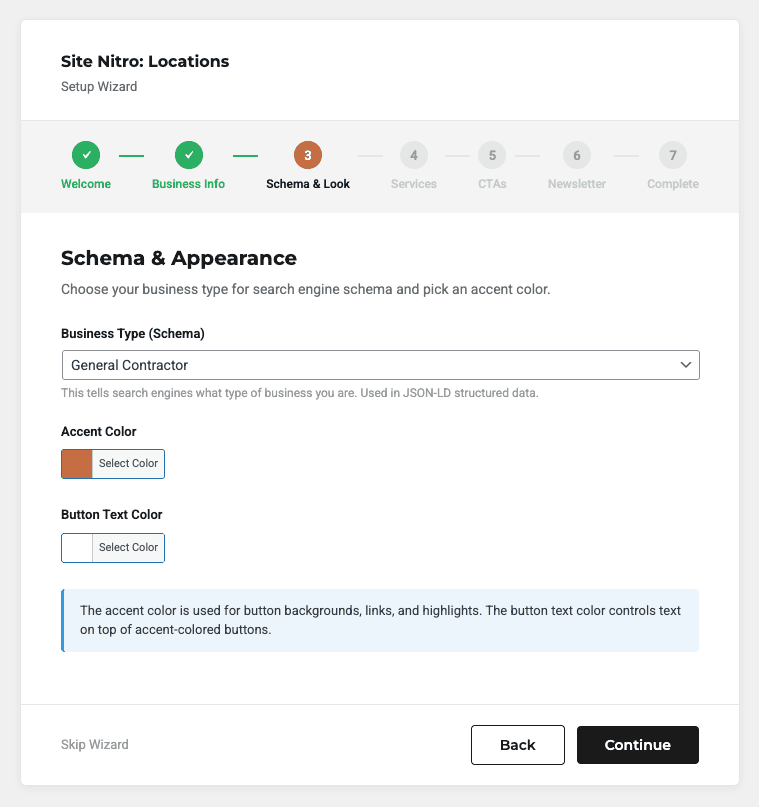
This step handles your schema type and brand appearance.
Schema Type — Select the Schema.org type that best matches your business. See Choosing the Right Schema Type for guidance. When in doubt, LocalBusiness is always a safe default.
Accent Color — The primary brand color applied to buttons, CTA elements, hero backgrounds, and accent details throughout plugin templates. The default is #C46D42 (copper). Click the color swatch to open the color picker and enter your brand hex code.
Button Text Color (Pro) — The text color for CTA buttons. Should contrast well against your accent color. Defaults to white (#FFFFFF).
Step 4: Services #
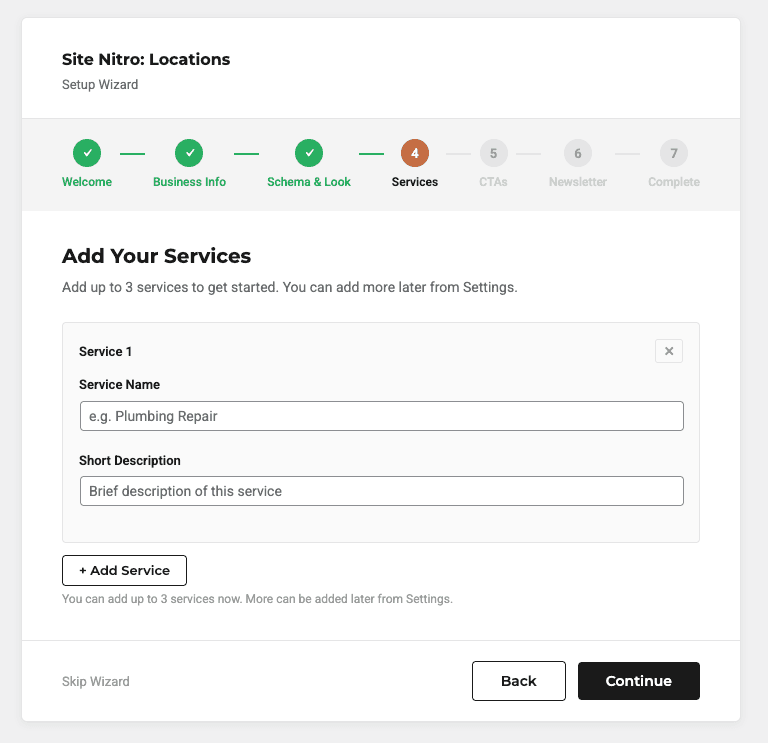
This step introduces the Services Registry — a centralized list of the services your business offers. Services defined here can be assigned to any location or service area page, which automatically generates child service pages.
You can add your first services here or skip this step and set them up later in Settings > Services.
Step 5: CTAs #
This step sets the default call-to-action button that appears on your location and service area pages.
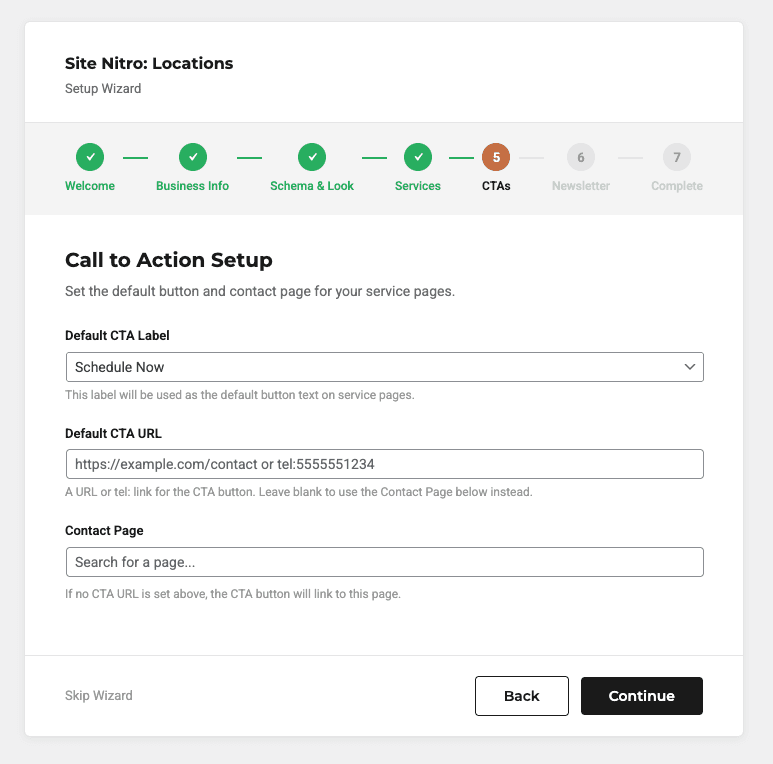
| Field | Description |
|---|---|
| Default CTA Label | The button text shown on service pages. Choose from preset options (e.g., “Schedule Now”, “Get a Free Quote”) or enter a custom label. |
| Default CTA URL | The destination for the CTA button. Can be a page URL or a tel: link for direct click-to-call (e.g., tel:5555551234). |
| Contact Page | If no CTA URL is set above, the button links to this page instead. Search for an existing page on your site. |
These defaults apply across all location and service area pages. Individual pages can override them as needed.
Step 6: Newsletter #
An optional step to subscribe to the Site Nitro email list for updates and tips. This step has no effect on plugin configuration and can be skipped without consequence.
Step 7: Complete #
The final screen confirms the plugin is configured and ready to use.
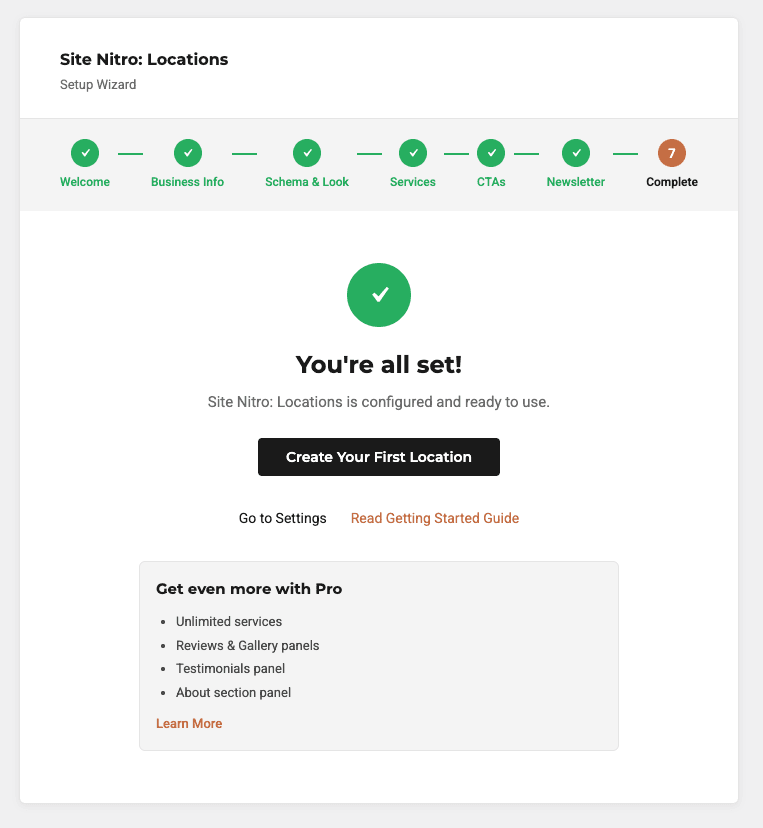
From here you have three options:
- Create Your First Location — links directly to the new Location editor
- Go to Settings — opens the full settings page for anything not covered in the wizard
- Read Getting Started Guide — links to this documentation
The complete screen also displays a Get even more with Pro panel listing features available on the Pro plan: unlimited services, Reviews & Gallery panels, Testimonials panel, and the About section panel.
What the Wizard Doesn’t Cover #
The wizard handles the most common initial settings. A few things you’ll configure separately after finishing:
- Reviews — Add customer reviews in Settings > Reviews.
- Export/Import — Available in Settings > Tools (Pro).
- Navigation menus — After creating pages, add them to your menu via Appearance > Menus. See Adding Pages to Your Navigation Menu — this requires a Screen Options step that catches most new users off guard.
Skipping the Wizard #
Every step has a Skip Wizard link in the bottom-left corner. If you skip, no settings are saved for that step — the plugin uses its defaults until you configure them manually. You can return to the wizard at any time from the plugin settings page to fill in anything you skipped.


