After installing Site Nitro: Locations and creating your first pages, you’ll likely head to Appearance > Menus to add them to your site’s navigation — and immediately notice they aren’t there. This is the most common point of confusion for new users, and the fix is simple once you know where to look.
Why Your Pages Don’t Appear in the Menu Editor #
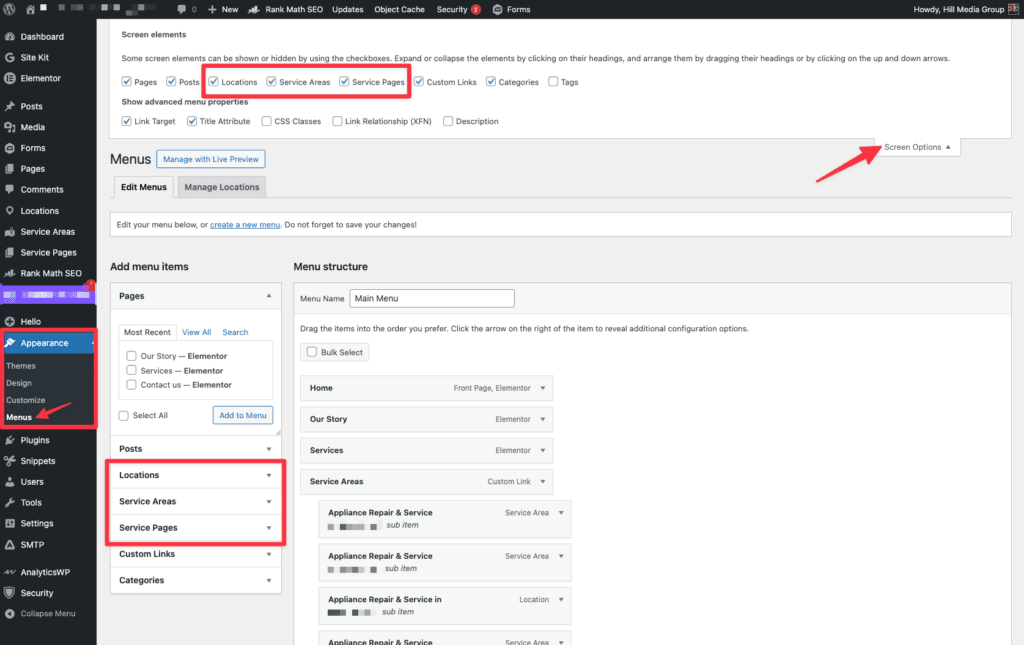
WordPress hides custom post types from the menu editor by default. When Site Nitro: Locations registers its post types (Locations, Service Areas, and Services), WordPress doesn’t automatically surface them in the left-hand panel on the Menus page. This is standard WordPress behavior — no plugin can force these panels on automatically. You enable them once per user account using Screen Options.
How to Enable the Post Type Panels #
- Go to Appearance > Menus in your WordPress admin.
- Click Screen Options in the top-right corner of the page. A panel will drop down from the top of the screen.
- In the Boxes section, check the boxes for Locations, Service Areas, and Services.
- Close Screen Options by clicking it again. The three panels now appear in the left column alongside Pages, Posts, and Categories.
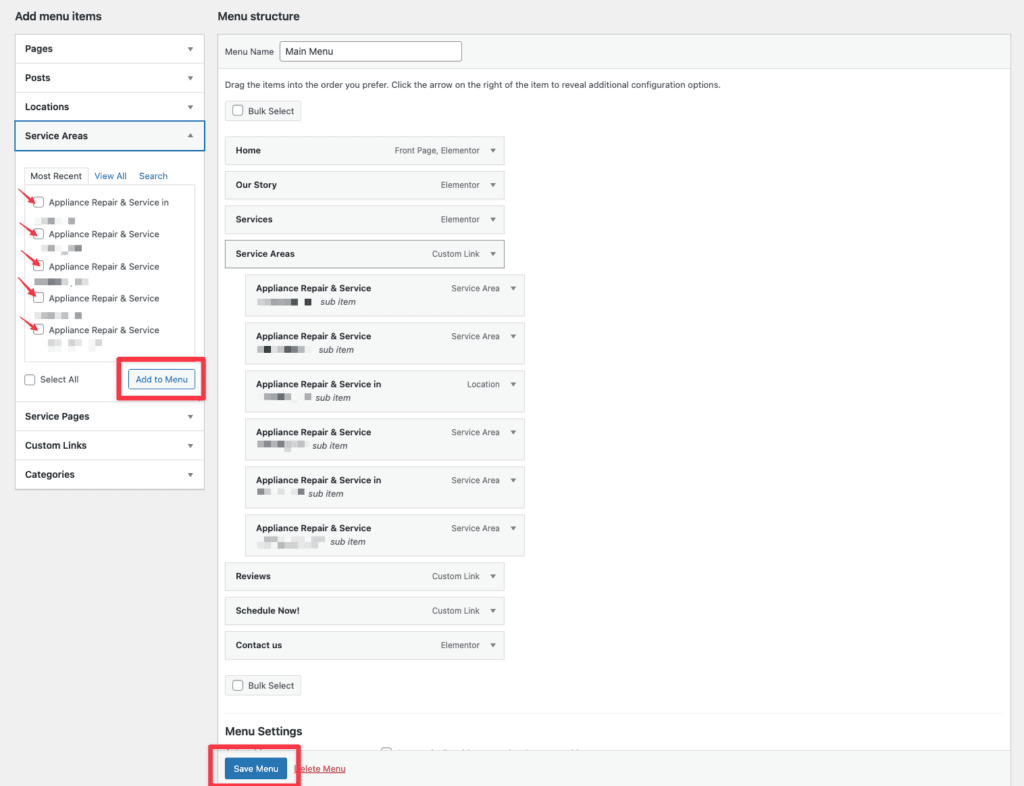
- Expand any panel, check the pages you want to add, and click Add to Menu.
Adding Individual Pages to Your Menu #
Once the panels are enabled:
- Locations — lists all published location pages. Add individual city pages or your main locations archive.
- Service Areas — lists all published service area pages.
- Services — lists all published services from your Services Registry. These are the top-level service definitions, not child service pages.
Check the boxes next to the pages you want, click Add to Menu, then drag them into the desired position in your menu structure.
A Note on Archive Pages #
Site Nitro: Locations also creates archive pages for your post types at the base slug URLs you configured (e.g., /locations/ and /service-areas/). These don’t appear in the post type panels because they’re not individual posts — they’re automatically generated archive URLs.
To add an archive to your menu, use Custom Links:
- In the Custom Links panel, enter the full URL (e.g.,
https://yourdomain.com/locations/). - Give it a label (e.g., “All Locations” or “Areas We Serve”).
- Click Add to Menu.
This Only Needs to Be Done Once #
Screen Options settings are saved per user. Once you’ve enabled the panels for your account, they’ll remain visible every time you visit Appearance > Menus. If another admin on your site can’t see them, they’ll need to follow the same steps for their own account.


